API keys & scopes
Create API keys with the permissions an AI client needs, set when they expire and revoke them.
On this page
An API key lets an AI app connect to your site without signing in: Claude Code, Claude Desktop, Cursor, VS Code, Windsurf, other MCP clients and your own scripts. Each key acts as the WordPress user who created it, limited to the permissions you pick.
Most apps connect with a connection link: a key made to be pasted as one address, created for you under Connect a client. Create a normal API key when an app or script sends its own Authorization header, or when you want to choose its permissions and expiry. Apps that sign in with OAuth do not need a key at all; they are listed under Connected apps.
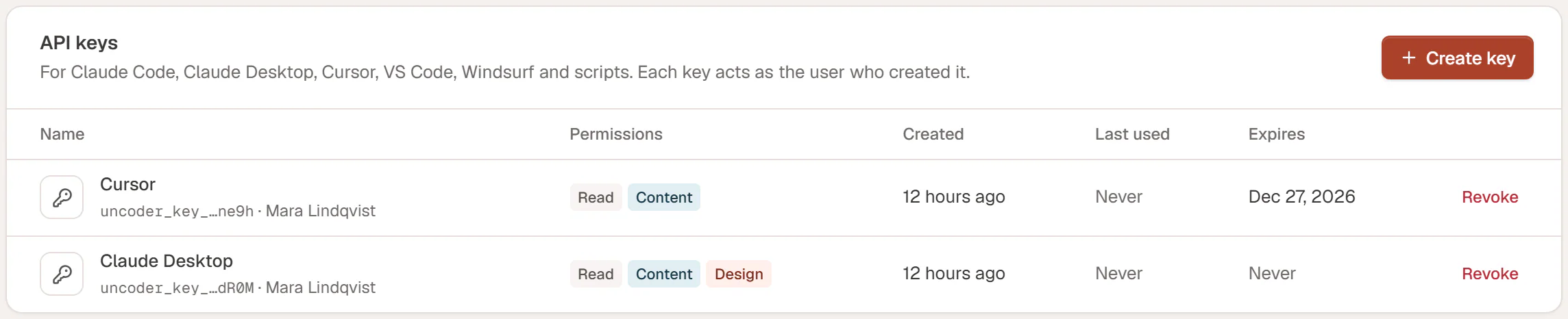
Create a key
Open the API keys tab
Go to Uncoder → AI & MCP → API keys and click Create key. You can also click Create key under Connect a client → Other clients → API key in a header: the name is filled in for you.
Name it
Type a Name you will recognise later, such as "Cursor on my laptop". The name appears in the activity log next to everything the key does.
Choose the permissions
Tick what the app may do: Read is always included; Content and Design are ticked by default; Site is off. Give an app only what it needs. See What each permission allows.
Choose when it expires
Pick an Expiration: 30 days, 90 days (the default), 180 days, 1 year or Never expires.
Create and copy it
Click Create key. The next window shows the key once. Click Copy and store it in your app or in a password manager.

Uncoder stores only a scrambled fingerprint (a hash) of the key, not the key itself, so it cannot show it again. If you lose it, revoke it and create a new one.
Until you leave the page, the setup snippets on the Connect a client tab contain your new key. Click Set up a client in the key window to go there and copy the ready-made configuration.
What each permission allows
A key (or a connected app) gets one or more of four permissions, also called scopes.
| Permission | What the AI can do with it |
|---|---|
| Read | See your pages, posts, templates, popups, Design System, media, menus and site settings; read the build guide and widget reference; search icons, fonts and openly licensed images. Always included. |
| Content | Create, edit, duplicate, publish and trash pages and posts; upload images and set their alt text; create placeholder images and simple logos; set SEO titles and meta descriptions; find and replace text across pages. |
| Design | Change the Design System (colors, fonts, text styles, buttons, layout); create and edit headers, footers, other theme templates and popups, and choose where they appear; attach mega menus; add custom CSS. |
| Site | Change site settings such as the title, tagline, home page, logo and maintenance mode; create and change menus and their locations; clear caches; read form submissions. |
Permissions never go beyond what the WordPress user may do. A key created by an Editor, for example, cannot get Design or Site, because Editors cannot change the theme or site settings.
In the key dialog, Site is only available to administrators, and Design only to users who may change the theme.
See and manage your keys
The table on the API keys tab shows, for each key:
- Name, the last four characters of the key (
uncoder_key_…a1b2) and the user it belongs to - Permissions
- Created and Last used (point at a date to see the exact time)
- Expires: the date, or Never
The number next to the tab name counts active keys. Expired and revoked keys are hidden; turn on Show revoked to list them too. They are marked Expired or Revoked.
Revoke a key
Revoke a key when you stop using an app, when a laptop is lost, or when you think a key has leaked.
- On the API keys tab, click Revoke next to the key.
- Confirm with Revoke key.
Every app using that key loses access immediately. This cannot be undone: to connect the app again, create a new key.
Connection links
A connection link is a key made to be pasted as one address: the server URL with the key at the end (…/wp-json/uncoder/v1/mcp?token=uncoder_link_…). It is the default way to connect every app: Claude, ChatGPT, Cursor, VS Code, Windsurf and any client that takes a server URL.
Create one under Connect a client: choose the app, then Create connection link. Uncoder fills the link into that app's one-click button (Claude, Cursor, VS Code) or its snippet. A link gets the Read, Content and Design permissions, never Site, and does not expire. It appears in the API keys table with a Connection link badge and the hint uncoder_link_…, and you revoke it like any key.
Links are safe by design:
- Only links work in a URL. A normal API key or a sign-in token sent as
?token=is refused, so they can never leak through an address. - HTTPS only. On a public site, a link sent over plain HTTP is refused.
- Hidden from the rest of WordPress. Uncoder takes the key out of the request address before other plugins or logs can see it, and stores only its hash.
Addresses can still appear in your web server's own access logs, so treat a link like a password: one link per app and computer, and revoke it if it was shared. To refuse every link, turn off Connection links in Server settings.
Good practice
- Create one key per app and computer, so you can revoke one without breaking the others.
- Prefer an expiration date. Create a new key when it runs out.
- Keep keys out of shared files and Git repositories. Put them in your user settings, not in a project.
- Check the Activity tab now and then to see what each key did.