Custom code
Add tracking tags, pixels, chat widgets, CSS and JavaScript snippets to the whole site or to chosen pages.
On this page
Custom code adds your own HTML, CSS and JavaScript to your pages: Google Analytics, Google Tag Manager, a Meta Pixel, a chat widget, a verification tag or a few lines of CSS. Each snippet chooses where in the page it goes and on which pages it appears, with the same rules as Theme Builder templates.
Go to Uncoder → Settings → Custom code.
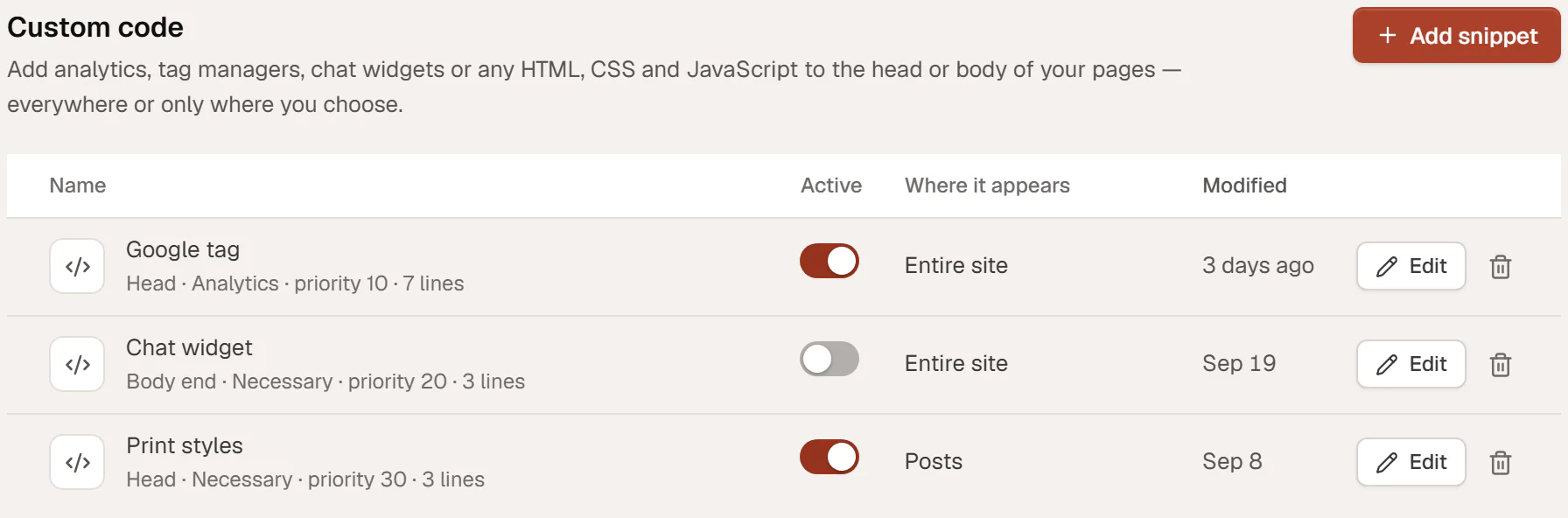
Snippets print raw code on your pages, so only users who may add unfiltered HTML can manage them: administrators on a normal site, and super admins on a multisite network. Others see Not available for your account.
Add a snippet
Open the drawer
Click Add snippet.
Start from a template (optional)
Under Start from, pick Google tag (GA4), Google Tag Manager, Meta Pixel, Custom CSS or Custom JavaScript. The name, location, cookie category and code are filled in, with a note on what to replace.
Name it
Give it a Name you will recognise, such as "Google Analytics".
Choose where in the page it goes
Pick the Location and, if you have several snippets, a Priority (see below).
Choose the cookie category
Pick Necessary — always runs, Analytics — needs consent or Marketing — needs consent. See Snippets and the cookie banner.
Paste the code
Paste it into Code. Snippets are HTML, so wrap JavaScript in
<script>tags and CSS in<style>tags.Choose where it appears
Under Where it appears, keep Include + Entire site, or choose specific pages. See below.
Add it
Leave Active on and click Add snippet. The code is on your site right away.
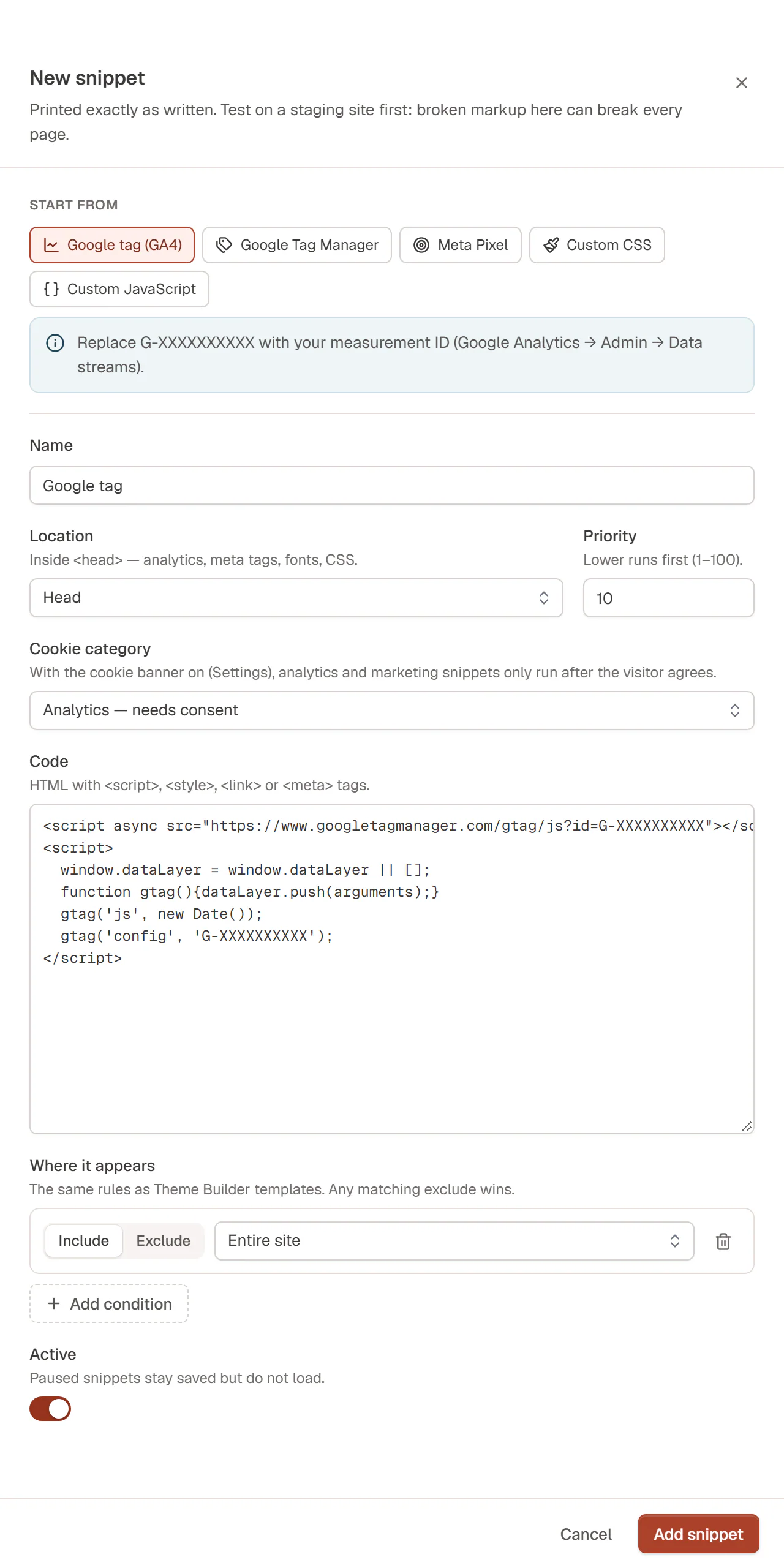
| Setting | What it does |
|---|---|
| Name | Your label for the snippet. Visitors never see it. |
| Location | Head: inside <head>, for analytics, meta tags, fonts and CSS. Body start: right after <body>, for Tag Manager's fallback. Body end: before </body>, for chat widgets and scripts that can wait. |
| Priority | The order of snippets in the same location, from 1 to 100. Lower numbers run first. The default is 10. |
| Cookie category | Whether the snippet waits for the visitor's consent when the cookie banner is on. |
| Code | The HTML to print, with <script>, <style>, <link> or <meta> tags. Press Tab to indent. Up to 200 KB. |
| Where it appears | Include and exclude rules, like Theme Builder display conditions. Any matching exclude wins. |
| Active | Paused snippets stay saved but do not load. |
Snippets never load inside the Uncoder editor, so a broken snippet cannot lock you out of the builder. They are printed exactly as written, though: a missing closing tag can break the layout of every page. Test new code on a staging site first when you can.
If the code loads a script over plain http://, the drawer warns you: browsers block such scripts on HTTPS sites.
Choose the pages
Where it appears uses the same rules as display conditions:
- Keep Include + Entire site for code that belongs on every page, such as analytics.
- Choose a rule such as Front page, a specific page, Posts in a category or term or Search results to load code only there.
- Click Add condition and choose Exclude to leave pages out, for example a thank-you page.
A snippet without any include rule loads nowhere: the drawer warns you with No include condition: the snippet will not load anywhere.
Manage snippets
The table lists every snippet with its location, cookie category, priority and number of lines, where it appears, and when it was changed.
- Active switch: pause or resume a snippet immediately, without opening it.
- Edit: change it, then click Save snippet.
- The bin icon: delete it. The code stops loading right away. This cannot be undone.
Analytics and tracking examples
Google Analytics 4
- Click Add snippet and start from Google tag (GA4).
- Replace both
G-XXXXXXXXXXwith your measurement ID. You find it in Google Analytics under Admin → Data streams. - Keep Location on Head and Cookie category on Analytics, and click Add snippet.
Google Tag Manager
- Start from Google Tag Manager and replace
GTM-XXXXXXXwith your container ID. - Optional: for visitors without JavaScript, add a second snippet with the
<noscript>part from Tag Manager, with Location set to Body start.
Meta Pixel
Start from Meta Pixel and replace YOUR_PIXEL_ID with the ID from Meta Events Manager. It starts in the Marketing category.
Site-wide CSS
Start from Custom CSS and write your CSS between the <style> tags. For one page, use the page's Page CSS in Page settings instead. For one element, use its custom CSS in the Behaviour tab. See Custom CSS & attributes.
Snippets and the cookie banner
When the cookie banner is on:
- Necessary snippets always run.
- Analytics and Marketing snippets wait. They run only after the visitor accepts that category, and never if the visitor rejects it.
When the banner is off, every active snippet runs for everyone.
If you turn on Google Consent Mode v2 in the cookie settings, put your Google tags in Necessary: they then load right away and follow Google's consent signal instead.
Snippets in site kits
A site kit can carry your snippets to another site. They arrive switched off, so an administrator checks and activates them there.