Shop pages
Design the shop, product category and product tag pages with a Product archive template, and design your own product cards.
On this page
A Product archive template is the layout of the pages that list your products: the main shop page, the product category pages and the product tag pages. It usually combines a title, a short introduction and a grid of products. WooCommerce still decides which products appear, how many per page and in which order, so its sorting, its visibility rules and the extensions that add to product listings keep working.
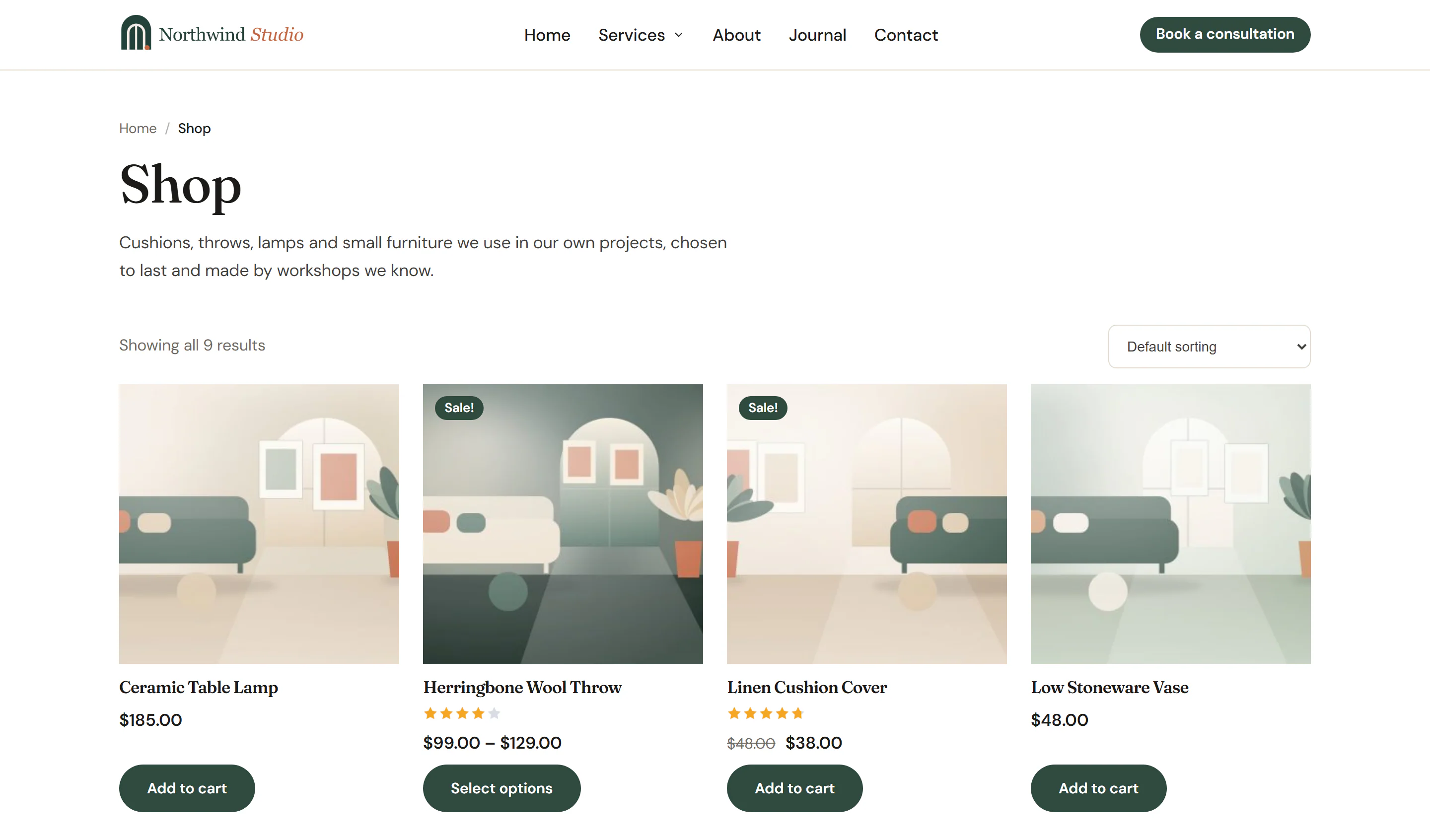
Build the shop page
Create the template
Go to Uncoder → Theme Builder → New template, choose Product archive (in the Shop group), name it, for example "Shop", and click Create and open editor. It will apply to the shop, product categories and product tags once published.
Add the title
Add Breadcrumbs, Archive Title and Archive Description. On the shop they show the title and the text of your shop page; on a category page, the category's name and description.
Add the products
Add a Products widget and set Show to Current listing (shop, category, search). It lists the products of the page being viewed, with WooCommerce's number of products per page, the sorting menu, the result count and page numbers. In the editor it previews your latest products.
Publish
Click Publish.
The title and the introduction
| Widget | On the shop | On a category or tag page |
|---|---|---|
| Archive Title | The title of your shop page, such as "Shop". | "Category: Name". Turn on Remove prefix to show only the name. |
| Archive Description | The text of your shop page, on the first page of the shop only. | The category's or tag's description. |
| Breadcrumbs | Home › Shop. | Home › Shop › the category (and its parents). |
In the editor of a Product archive template, the Archive Title shows the title of your shop page.
Show the categories
A Product Categories grid above the products helps shoppers jump to a category. On the shop, set Show to Top-level categories. In a template for category pages, set it to Subcategories of the category viewed: it lists the categories inside the one being viewed and shows nothing on categories without subcategories.
Different layouts for different categories
To give some categories their own layout, create another Product archive template and change its condition: in the Archives rule, choose the product categories (or product tags) and pick the categories. The more specific template wins over the one for the whole shop. See Template conditions.
A new Product archive template includes Archives → Products, which covers the shop, every product category and every product tag.
Product search results
WooCommerce's product search can use your Product archive template too. Add an include condition Search results to the template; product searches then show it, with Show: Current listing listing the products found. Searches of your posts keep using your Search results template.
Design your own product cards
The Products widget shows WooCommerce's product cards, which you can style but not rearrange. For a card with your own layout, design a product loop item and show it with a Loop Grid or Loop Carousel.
Create the card
Go to Uncoder → Theme Builder → New template, choose Loop item, name it, for example "Product card", and click Create and open editor.
Add the product's parts
From the WooCommerce group, add Product Title (set HTML tag to H3 and turn on Link to the product), Product Rating, Product Price, Sale Badge and Add to Cart. For the image, add a Featured Image (the product image) or an Image with the Product image dynamic tag. In a loop item, Add to Cart shows WooCommerce's button: Add to cart, Select options or Read more, depending on the product.
Check it with real products
A loop item with WooCommerce widgets previews with a product. To choose which one, click Template in the rail on the left and pick it in Preview with.
Show the cards
Publish the card. On a page, add a Loop Grid (or Loop Carousel), choose the card in Loop item template, and in Query set Source to Custom query and Post type to Products.
With Post type set to Products, the query has more options:
| Setting | Options |
|---|---|
| Products | All products, Featured, On sale, Best selling (most sales first), Top rated (best rating first) or In stock. |
| Order by | Besides the usual options: Price (products), Sales (products) and Rating (products). |
Hidden products stay hidden, and out-of-stock products are left out when Hide out of stock items from the catalog is on in WooCommerce → Settings → Products → Inventory.
To use your card on the shop itself, add a Loop Grid with Source set to Current query (archives) to your Product archive template instead of the Products widget. It lists the products of the page being viewed. The sorting menu and the result count are part of the Products widget only. See Loop Grid.