Spacer
Blank vertical space between elements.
The Spacer adds empty vertical space between two elements. It is useful for a one-off gap, for example extra room above a closing call to action. For regular spacing, the container's Gap and padding are better: they keep spacing even and adapt per device without extra elements.
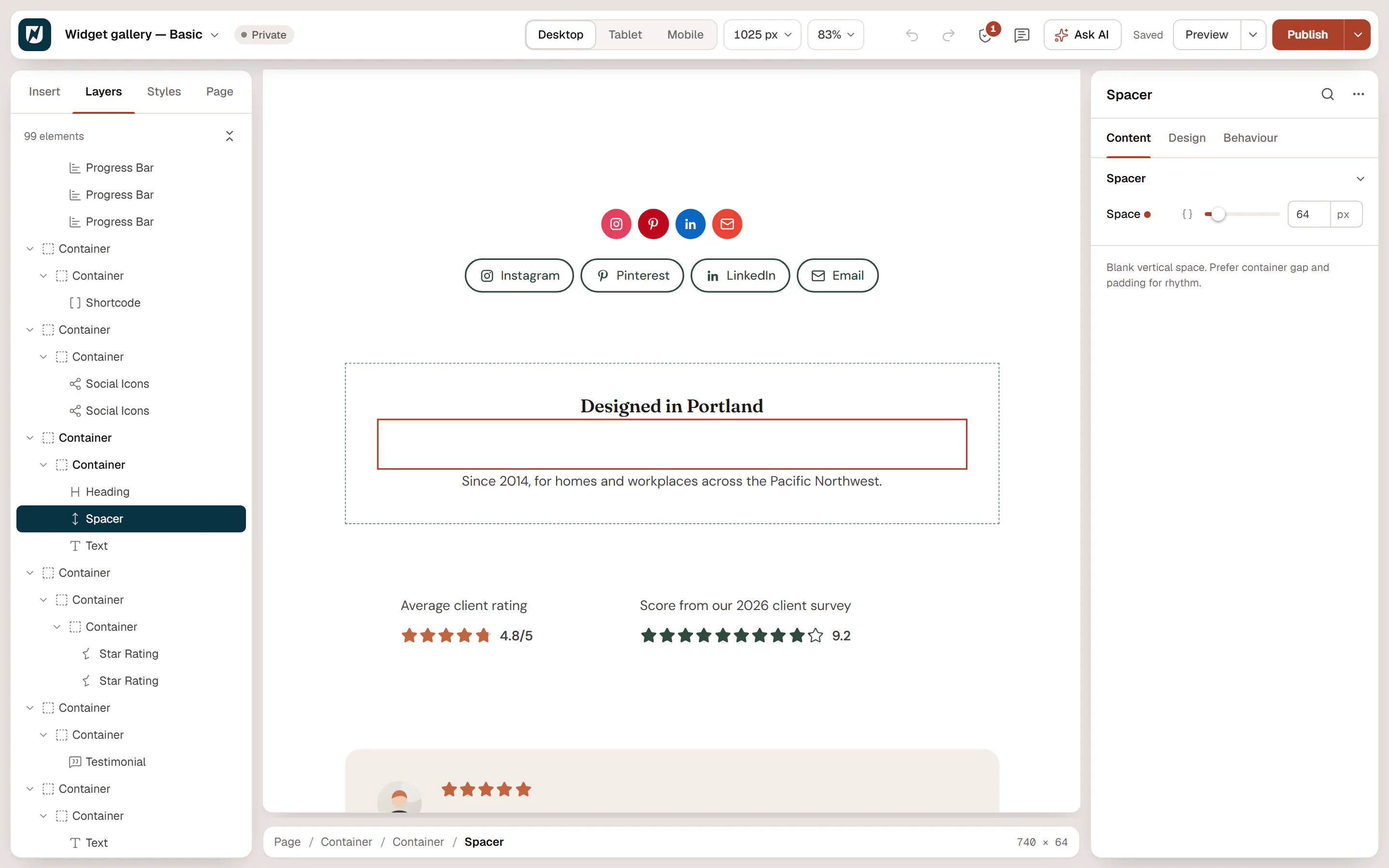
Add a spacer
Insert it
Click Insert in the rail on the left, find Spacer under Basic (or type
spacerin Search widgets) and drop it between two elements.Set the height
Drag Space or type a value. Switch to Tablet or Mobile in the top bar to use a smaller space on small screens.
Settings
Content tab
Spacer
| Setting | What it does |
|---|---|
| Space | Height of the empty space. Default: 48px. Per device. |
Design tab
Shared Design sections
Every element also has these sections at the end of the Design tab.
| Section | What it does |
|---|---|
| Spacing & position | Margin, padding, width, alignment in its container, order, position (relative, absolute, fixed), offsets, z-index and global classes. See Spacing, size & position. |
| Background & border | Background, border, border radius, box shadow, overflow and opacity of the whole element. See Colors & backgrounds and Borders & shadows. |
| Mask | Crops the element to a shape (circle, arch, blob, star…) or your own SVG or PNG. See Shape dividers & masks. |
Behaviour tab
Behaviour sections
The Behaviour tab is the same for every element.
| Section | What it does |
|---|---|
| Anchor & classes | An Anchor ID for #links and your own CSS classes. |
| Animations | Entrance, scroll, hover and loop animations from presets or your own timeline. See Motion & effects. |
| Motion & effects | A simple entrance animation, transforms (also on hover), CSS and backdrop filters, and sticky positioning. |
| Scroll & mouse effects | Movement, rotation, scale, fade and blur while the page scrolls, and pointer effects (follow the pointer, 3D tilt). |
| Visibility | Hide the element on desktop, tablet or mobile, or in dark or light mode. See Visibility. |
| Conditions | Show the element only when rules match, such as logged-in visitors, a date range or a URL parameter. See Display conditions. |
| Interactions | Show, hide or change other elements when this one is clicked, hovered or scrolled into view. See Interactions. |
| Attributes & CSS | Custom HTML attributes and custom CSS for this element. See Custom CSS & attributes. |
Tips
- Prefer gap and padding. Set Gap on the container (Content → Layout) for space between all its children, or padding in Design → Spacing & position for space inside it.
- Use variables. The { } button next to Space (Use a design variable) picks a spacing variable from the Design System, so spacing stays consistent across the site. See Sizes & layout.
- Smaller on phones. Large spacers waste screen space on mobile; reduce them per device.