Product Meta
The SKU, categories and tags of the product.
On this page
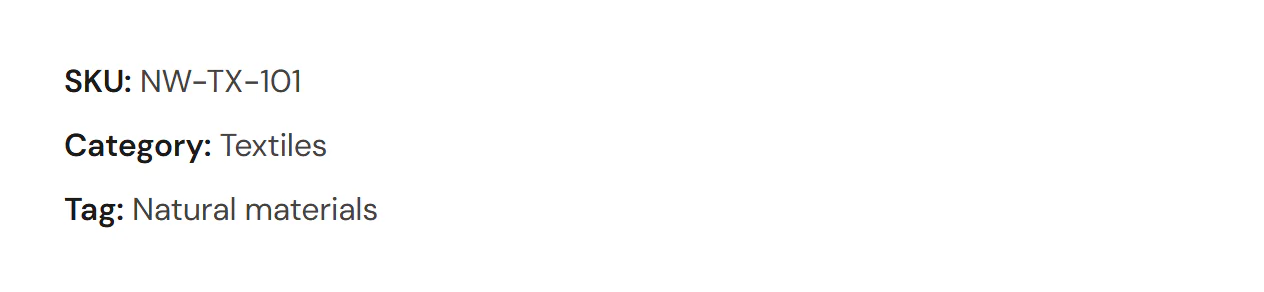
The Product Meta widget shows the SKU, the categories and the tags of a WooCommerce product, each on its own line or in a row. Categories and tags link to their shop pages. Extensions that add a line here, such as a brand, keep showing it.
Where the product comes from
The widget shows the product being viewed: on a product page template it is the product the visitor opened, and in a product loop item it is each card's product. To show one particular product anywhere else, pick it in the Product section of the Content tab.
A product without an SKU shows no SKU line. A product with options always has the line: it shows the product's own SKU, or "N/A", until the shopper picks the options; WooCommerce then shows the SKU of that option. The labels switch between "Category:" and "Categories:" (and "Tag:" and "Tags:") by themselves, unless you type your own.
When the product has nothing to show, the editor shows This product has no SKU, categories or tags to show. and the live page shows nothing.
Add a Product Meta
Open your product page template in the Theme Builder. Then click Insert in the rail on the left, find Product Meta in the WooCommerce group (or type "sku" in the search box) and drag it into the template. See Add elements.
Content tab settings
| Setting | What it does |
|---|---|
| SKU | Shows the SKU. On by default. |
| Categories | Shows the product categories. On by default. |
| Tags | Shows the product tags. On by default. |
| Layout | One per line or In a row. Default: One per line. |
| SKU label | Default: SKU:. Shown when SKU is on. |
| Categories label | Default: Category: (or Categories:). Shown when Categories is on. |
| Tags label | Default: Tag: (or Tags:). Shown when Tags is on. |
| Between terms | The text between categories or tags. Default: a comma and a space. |
| Setting | What it does |
|---|---|
| Product | Leave empty to show the product being viewed (product pages, product loop items). Pick a product to show it on any page. |
Design tab settings
| Section | Settings |
|---|---|
| Meta | Space between lines. Under Labels: Typography and Color. Under Values: Typography, Color and Link hover color. |
The Design tab also has the sections every element shares: Spacing & position, Background & border and Mask. See Spacing, size & position.
Behaviour tab
The Behaviour tab has the settings every element shares: anchor and classes, entrance animations, motion effects, visibility per device, display conditions and interactions. See Visibility.
Tips
- Place the meta under the Add to Cart form, where shoppers expect the small print.
- For the categories inside other text, use the Product categories or Product SKU dynamic tag. See Dynamic tags.