HTML
Add your own HTML, such as an embed code from another service.
The HTML widget adds your own markup to the page: an embed code from a booking tool, a small custom badge, or an iframe from another service. Use it when no widget does the job; for text, images and layout, the native widgets are easier to edit and to keep responsive.

Add HTML
Insert it
Open Insert in the left panel, find HTML under Basic (or type
htmlin Search widgets) and click it or drag it onto the canvas.Paste your code
Paste the code into Content → HTML → HTML code. The canvas shows the result.
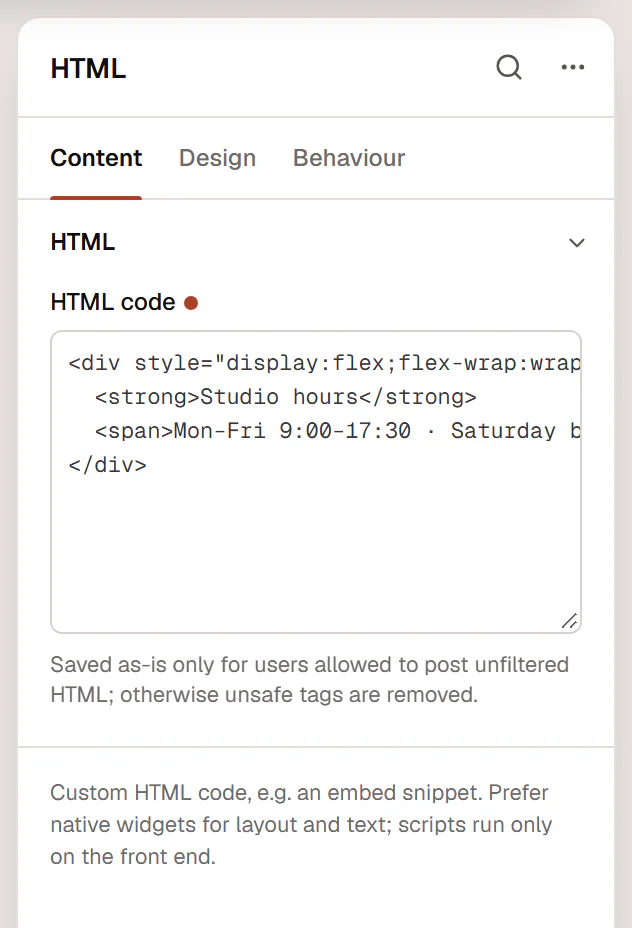
Who can add scripts
The code is saved exactly as you type it only for users who are allowed to post unfiltered HTML (on most sites, administrators). For other users, unsafe tags such as <script> are removed when the page is saved. Scripts run on the live page, not in the editor, so check the result in Preview.
Settings
Content tab
| Setting | What it does |
|---|---|
| HTML code | Your HTML, for example an embed code from another service. Saved as-is only for users allowed to post unfiltered HTML (administrators on most sites); for other users unsafe tags are removed. Scripts run on the live page, not in the editor. |
Design tab
Every element also has these sections at the end of the Design tab.
| Section | What it does |
|---|---|
| Spacing & position | Margin, padding, width, alignment in its container, order, position (relative, absolute, fixed), offsets, z-index and global classes. See Spacing, size & position. |
| Background & border | Background, border, border radius, box shadow, overflow and opacity of the whole element. See Colors & backgrounds and Borders & shadows. |
| Mask | Crops the element to a shape (circle, arch, blob, star…) or your own SVG or PNG. See Shape dividers & masks. |
Behaviour tab
The Behaviour tab is the same for every element.
| Section | What it does |
|---|---|
| Anchor & classes | An Anchor ID for #links and your own CSS classes. |
| Animations | Entrance, scroll, hover and loop animations from presets or your own timeline. See Motion & effects. |
| Motion & effects | A simple entrance animation, transforms (also on hover), CSS and backdrop filters, and sticky positioning. |
| Scroll & mouse effects | Movement, rotation, scale, fade and blur while the page scrolls, and pointer effects (follow the pointer, 3D tilt). |
| Visibility | Hide the element on desktop, tablet or mobile, or in dark or light mode. See Visibility. |
| Conditions | Show the element only when rules match, such as logged-in visitors, a date range or a URL parameter. See Display conditions. |
| Interactions | Show, hide or change other elements when this one is clicked, hovered or scrolled into view. See Interactions. |
| Attributes & CSS | Custom HTML attributes and custom CSS for this element. See Custom CSS & attributes. |
Tips
- Tracking codes go elsewhere. Analytics tags and pixels belong in Uncoder → Settings → Custom code, where they can wait for cookie consent. See Custom code.
- Iframes need a title. Give an embedded
<iframe>atitleattribute so screen readers can name it; Accessibility checks flag iframes without one. - Mind the width. Embeds with a fixed width can overflow on phones. Use
width: 100%ormax-width: 100%in the embed's style. - Shortcodes. To show a shortcode, use the Shortcode widget: the HTML widget does not run shortcodes.