Product pages
Design the page of every WooCommerce product with a Single product template.
On this page
A Single product template is the layout of your product pages: the gallery, the name, the price, the add to cart form, the details and the related products. You design it once, and every product uses it with its own images, prices and text. WooCommerce stays in charge of the page: messages, the add to cart form for every product type, reviews, the product data that search engines read, and the extensions that add to product pages all keep working.
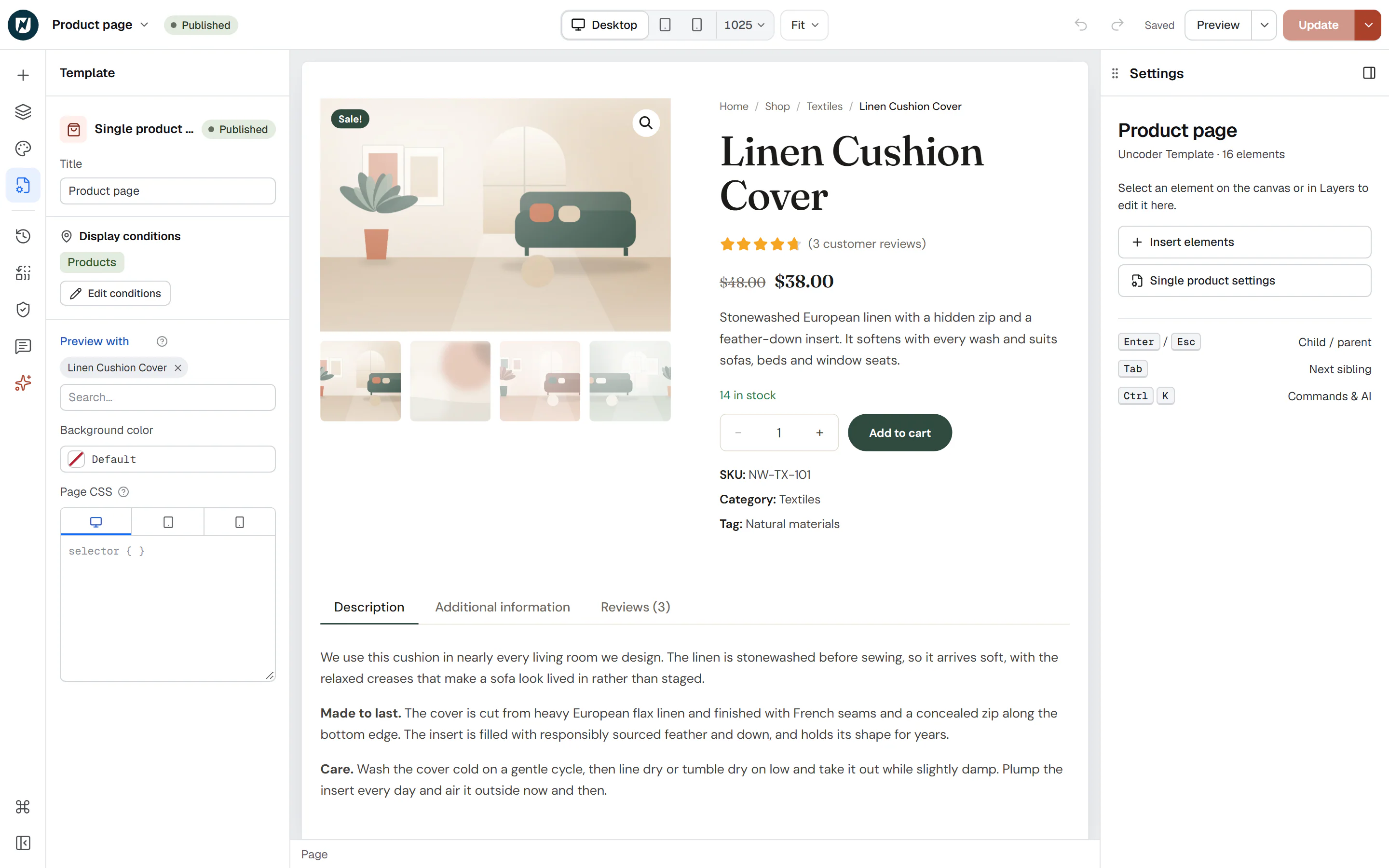
Build a product page
Create the template
Go to Uncoder → Theme Builder → New template, choose Single product (in the Shop group), name it, for example "Product page", and click Create and open editor. It will apply to all products once published.
Lay out the top of the page
Add a section with two columns. Put Product Images in the left column. In the right column, add the product summary from the WooCommerce group, top to bottom: Product Title, Product Rating, Product Price, Short Description, Add to Cart and Product Meta. Add Breadcrumbs and a Sale Badge above the title if you like.
Add the details below
Under the two columns, add Product Tabs for the description, the additional information and the reviews. Then add Related Products for "Related products", and a second one set to Upsells of the product viewed if you use upsells.
Check it on a phone
Switch to Mobile in the top bar and set the section to one column. Product Tabs already turns into an accordion on phones.
Publish
Click Publish. Every product now uses this layout.
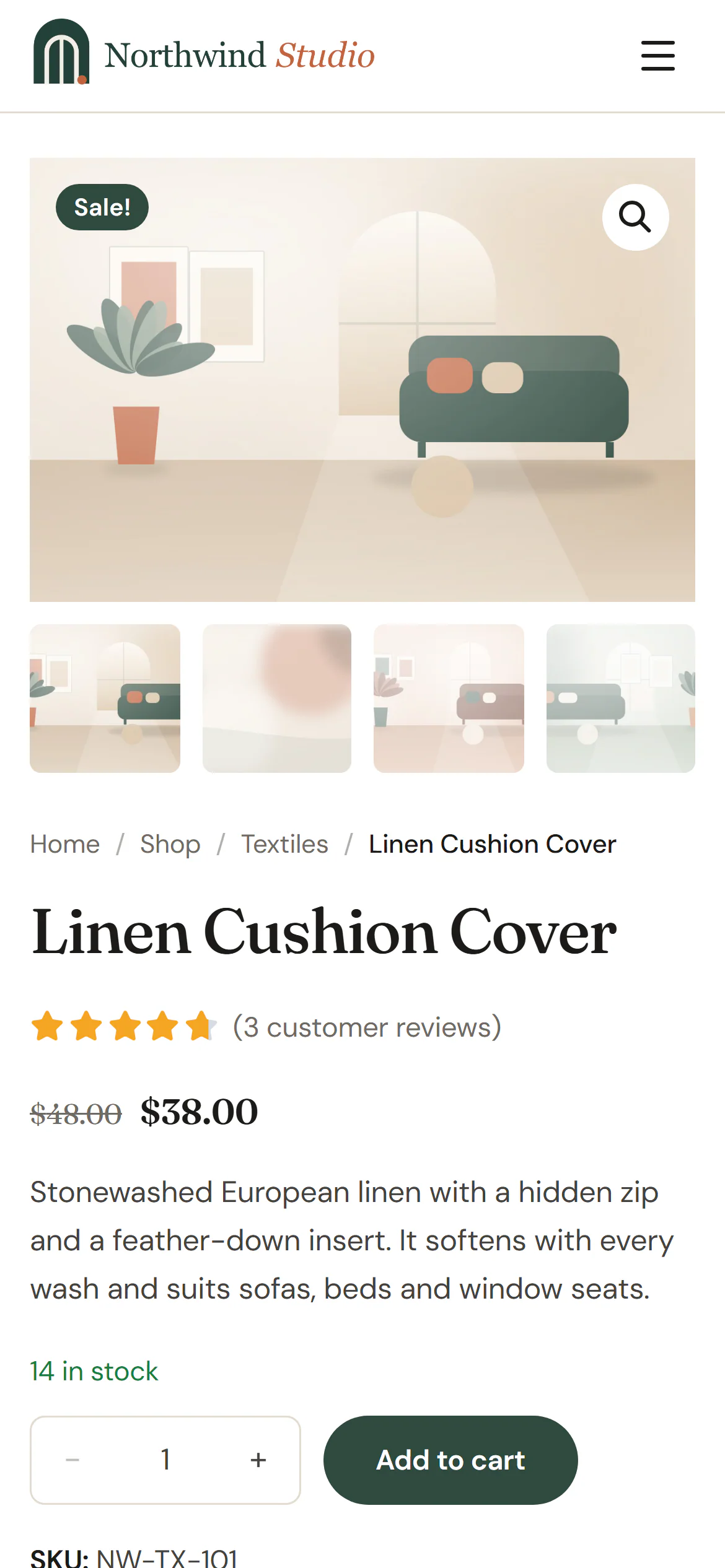
A layout that works
| Area | Widgets |
|---|---|
| Top, left column | Product Images (Gallery with thumbnails, or One column with a sticky summary beside it) |
| Top, right column | Breadcrumbs, Sale Badge, Product Title (H1), Product Rating, Product Price, Short Description, Add to Cart, Product Meta |
| Below | Product Tabs, then Related Products |
| Optional | Woo Notices near the top, Product Stock, Additional Information and Product Description as sections of their own |
Any other widget works too: an Icon List of delivery promises, an Accordion of FAQs, a Testimonial. With dynamic tags they can show product data, such as "Save 20%" from the Product discount tag.
Keep one H1 per page: the Product Title. Headings further down, such as Related products, are H2.
Preview with a product
While you design, the widgets show a real product. To choose which one, click Template in the rail on the left and pick a product in Preview with. Empty uses the latest product. Pick products of each kind to check your layout: one on sale, one with options (a variable product), one out of stock, one without reviews. This only changes the editor preview.
To see the template on the site before you publish, use the preview in the Theme Builder: its Preview with list offers your recent products. See Preview & manage templates.
Messages
WooCommerce shows messages on product pages, such as "… has been added to your cart." or an error when options are missing. Without a Woo Notices widget, they appear at the top of the template. Add a Woo Notices widget to show them where you want, for example right above the add to cart form; they then appear only there.
If Add to Cart has Add without reloading the page on, its messages appear in the Woo Notices widget too.
Which products use the template
A new Single product template applies to all products: its condition includes Posts, pages & custom types → Products. To give some products a different layout, create another Single product template with a more specific condition, for example Posts in a category or term with the product categories and the category you want, or specific products. The more specific template wins. See Template conditions.
When no Single product template matches a product, a Single (custom post type) template for products is used, if there is one. When nothing matches, WooCommerce and your theme show the product as before.
Good to know
- Password-protected products show WooCommerce's password form instead of your layout until the visitor enters the password.
- The gallery. Once a Single product template is live, the product gallery's zoom, full-screen view and slider are on, whatever your theme declares.
- Themes without WooCommerce support. While you use a Single product or Shop template, Uncoder tells WooCommerce that your theme supports it. Otherwise WooCommerce would run such themes in a fallback mode that rebuilds product pages, the shop and category pages around your templates.
- Extensions. WooCommerce's product page hooks still run around your template, so extensions that add a box above or below the product, or a line to the meta, keep showing it.
- Search engines. WooCommerce's product data (price, stock, rating) is still added to the page for search results.