Product Stock
The stock status of the product: how many are left, out of stock or available on backorder.
On this page
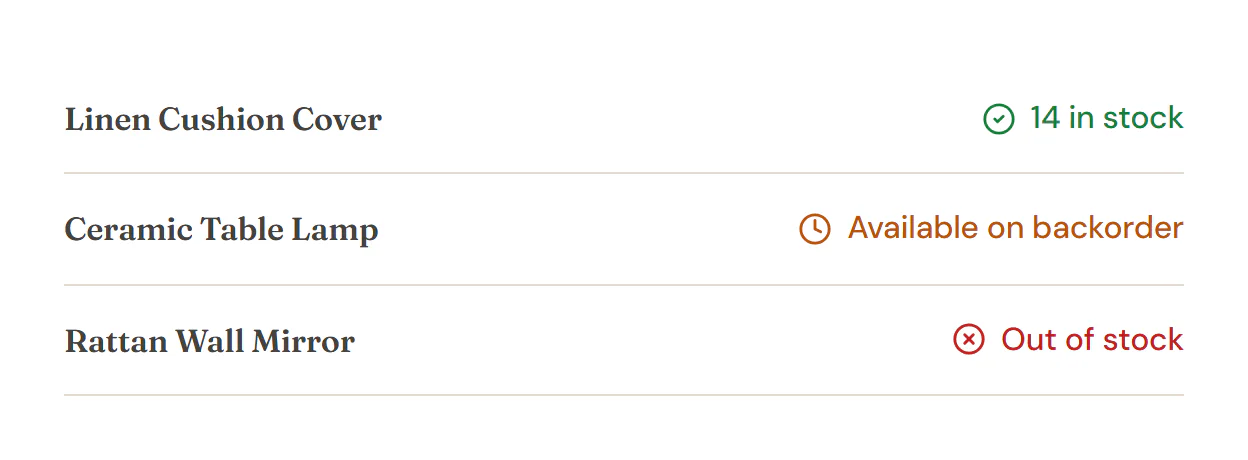
The Product Stock widget shows WooCommerce's stock status for a product, such as "12 in stock", "Out of stock" or "Available on backorder". It follows the stock display format set in WooCommerce, so you decide there whether shoppers see the exact number.
Where the product comes from
The widget shows the product being viewed: on a product page template it is the product the visitor opened, and in a product loop item it is each card's product. To show one particular product anywhere else, pick it in the Product section of the Content tab.
Products without stock tracking
WooCommerce only prints a stock status for products whose stock it tracks, or that are out of stock or on backorder. For an in-stock product without stock tracking it prints nothing. Type a Text when in stock, such as "In stock, ships in 2 days", to show a line for those products too.
When there is nothing to show, the editor says so in place of the widget, and the live page shows nothing.
Add a Product Stock
Open your product page template or a product loop item in the Theme Builder. Then click Insert in the rail on the left, find Product Stock in the WooCommerce group (or type "stock" in the search box) and drag it into the template. See Add elements.
Content tab settings
| Setting | What it does |
|---|---|
| Text when in stock | Shown for products in stock whose stock WooCommerce does not track (it then prints nothing). Leave empty to show nothing. |
| Icons | An icon before the status. Off by default. |
| Setting | What it does |
|---|---|
| Product | Leave empty to show the product being viewed (product pages, product loop items). Pick a product to show it on any page. |
Design tab settings
| Section | Settings |
|---|---|
| Stock | Typography, the colors for In stock, Out of stock and On backorder, and Icon size (when Icons is on). |
The Design tab also has the sections every element shares: Spacing & position, Background & border and Mask. See Spacing, size & position.
Behaviour tab
The Behaviour tab has the settings every element shares: anchor and classes, entrance animations, motion effects, visibility per device, display conditions and interactions. See Visibility.
Tips
- The Add to Cart widget shows the stock status too. Turn its Stock status off when you use this widget.
- To show "Only 3 left" or the plain number elsewhere, use the Product stock dynamic tag with Show set to Quantity in stock. See Dynamic tags.