WooCommerce
Design product pages, the shop, the cart, the checkout and the account area with Uncoder, while WooCommerce runs your store.
On this page
With WooCommerce active, Uncoder lets you design every page of your shop: the product page, the shop and category pages, the cart, the checkout, the customer account and the cart icon in your header. You design; WooCommerce stays in charge of the store. Prices, stock, product options, the cart, payments, taxes, shipping, emails, messages and the product data that search engines read all come from WooCommerce, so payment gateways and other WooCommerce extensions keep working.
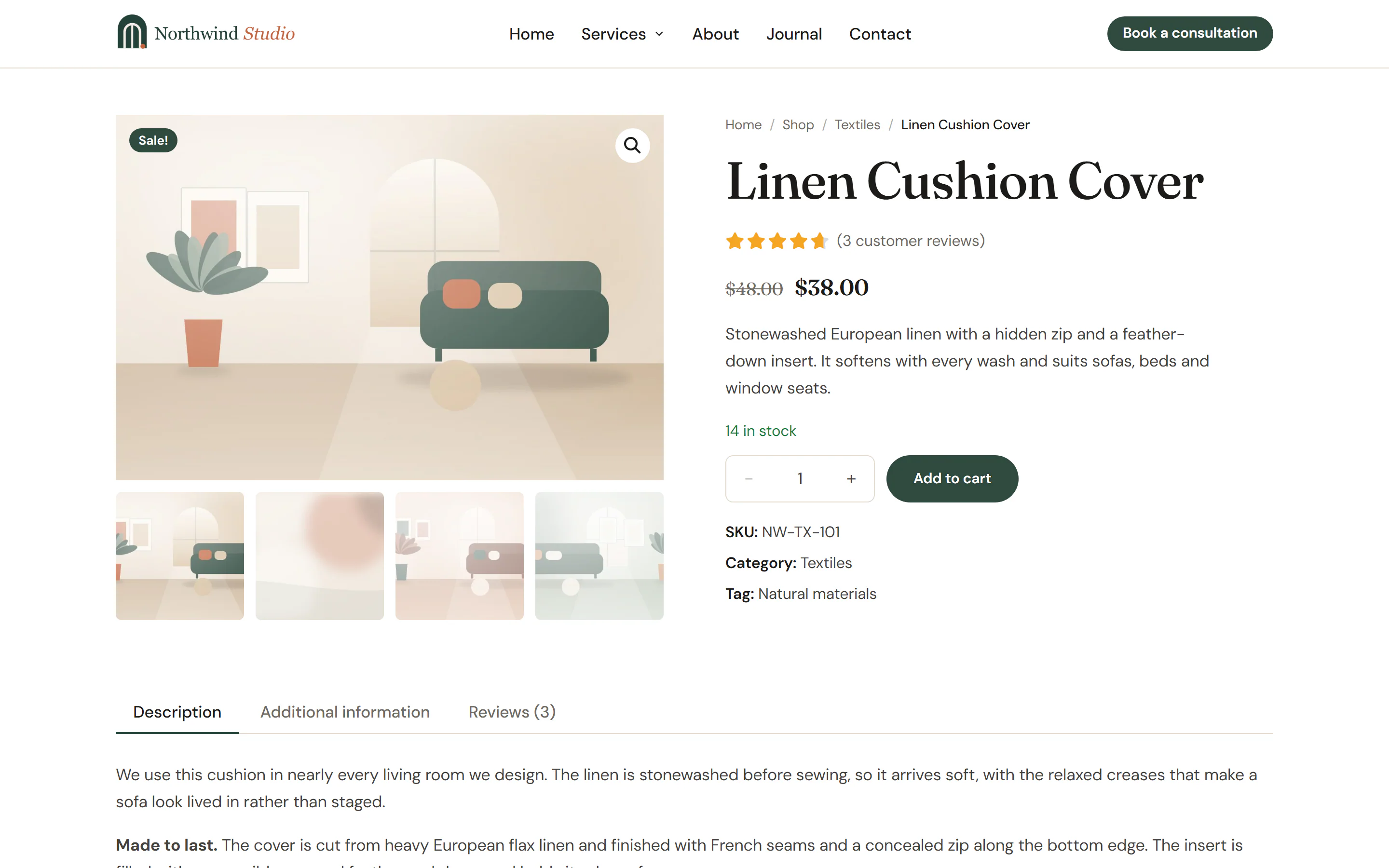
What you get
| Part | What it does | Where |
|---|---|---|
| Single product template | The layout of every product page. | Product pages |
| Product archive template | The layout of the shop, product category and product tag pages. | Shop pages |
| WooCommerce widgets | Product title, images, price, add to cart, tabs, product grids, cart, checkout, account and more, in the WooCommerce group of the Insert panel. | Widgets |
| Product cards | Loop items with product widgets, shown by a Loop Grid or Loop Carousel with a product query. | Shop pages |
| Design System → Shop | Price, sale badge, star and message colors for every WooCommerce widget, and the option to style WooCommerce's own buttons and fields. | Shop styles |
| WooCommerce dynamic tags | Product price, SKU, stock, rating, discount, images, cart count and total, and links to the shop pages, for any widget. | Dynamic tags |
In the Theme Builder, the two template types appear in their own Shop group.
Before you start
- Install and activate WooCommerce, and add a few products, with images, prices and at least one sale price. The editor previews your templates with real products.
- Let WooCommerce create its pages (Shop, Cart, Checkout, My account). The cart, checkout and account pages are listed in WooCommerce → Settings → Advanced → Page setup, the shop page in WooCommerce → Settings → Products.
The WooCommerce widget group, the Shop templates and the Shop tab of the Design System only appear while WooCommerce is active. If you switch WooCommerce off later, nothing is lost: WooCommerce widgets stay on your pages and templates, show nothing on the site, and show WooCommerce is not active. in the editor, with the note Activate WooCommerce to use this widget. Until then it shows nothing on the site. in their settings. Switch WooCommerce on again and they come back.
Where the widgets get their product
Product widgets, such as Product Title, Product Price and Add to Cart, show the product being viewed:
- in a Single product template, the product the visitor opened;
- in a product Loop item, each card's product.
Each product widget also has a Product section on its Content tab. Pick a product there to show it anywhere, for example on a landing page for one product: its price, images and add to cart button, in your own layout.
While you design a template, the widgets show the product chosen in Preview with in the Template settings, or your latest product. On a page where there is no product to show, the editor previews your latest product, but the live page shows nothing until you pick one. While your store has no products yet, the widgets show Add a product to your store to preview this widget.
The pages of your shop
Design the product page
Create a Single product template with the images, title, price, add to cart, tabs and related products. See Product pages.
Design the shop and categories
Create a Product archive template with a title and the Products widget. See Shop pages.
Design the cart, checkout and account pages
Build WooCommerce's Cart, Checkout and My account pages with the Cart, Checkout and My Account widgets, and add a Mini Cart to your header. See Cart, checkout & account.
Set the shop's colors
Open Styles → Shop in the editor and set the price, sale badge, star and message colors once for every widget. See Shop styles.
Without a Single product or Product archive template, WooCommerce and your theme show those pages as before.
Widgets
The WooCommerce group of the Insert panel holds these widgets.
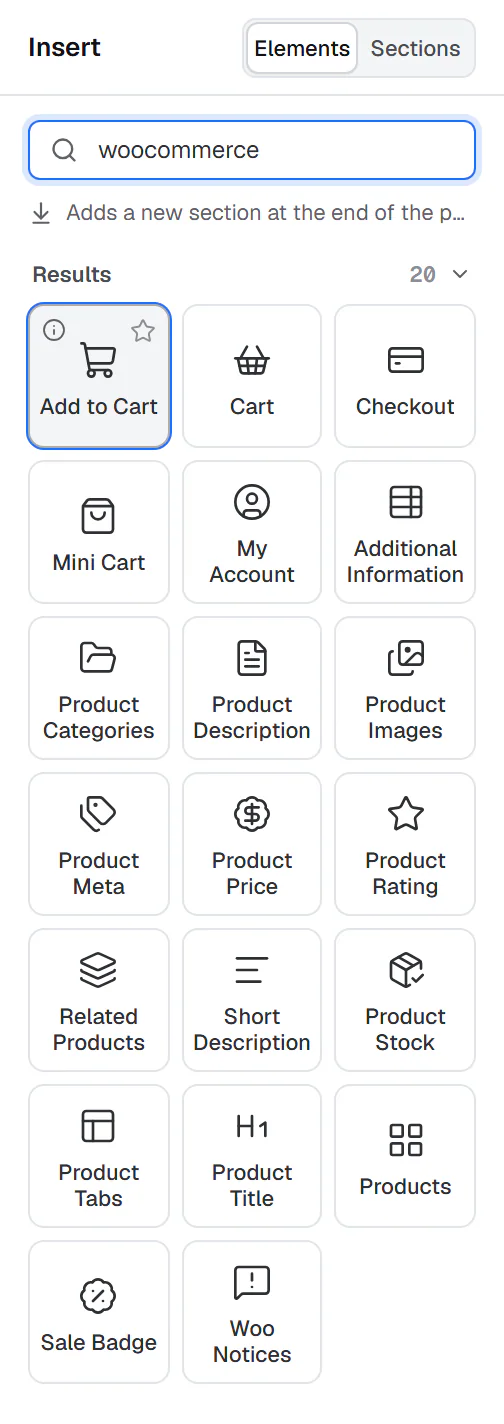
Other widgets know about WooCommerce too. Breadcrumbs shows the shop and the product's category in the trail of a product page. Archive Title shows the shop page's title on the shop, and Archive Description shows the shop page's text.
Import from Elementor
If your shop was built with Elementor Pro, the Elementor importer converts its WooCommerce widgets to these widgets: the product widgets (title, images, price, add to cart and custom add to cart, rating, stock, meta, short description, content, data tabs, additional information), the product grids (Products, Archive Products, related products, upsells, product categories), the Menu Cart, the Cart, Checkout and My Account widgets, and the WooCommerce breadcrumbs, notices and archive description. Elementor's Product and Product archive templates become Single product and Product archive templates.