Import from Elementor
Convert Elementor pages, templates, UiCore theme templates, WPForms forms and global colors and fonts into Uncoder designs, and see what could not be converted.
On this page
- What the list shows
- Convert pages and templates
- Create copies or Replace in place
- Page layout
- Templates
- Template shortcodes
- Import Elementor's global colors and fonts
- Custom fonts
- Site CSS
- Apply to the whole site
- Read the report
- Import Elementor template files
- UiCore Framework themes
- Theme Options
- WPForms forms
- What converts
- Add-on widgets
- Icons
- Related
If your site was built with Elementor, Uncoder can rebuild those pages and templates as Uncoder designs, and bring over Elementor's global colors and fonts into your Design System. Elementor's own data is never changed, so you can compare both versions and switch back at any time.
The importer reads the designs straight from your WordPress database. Elementor does not need to be active. It also converts the templates of UiCore Framework themes and the WPForms forms on your pages.
Go to Uncoder → Library → Import & export and scroll to Import from Elementor. Only administrators see this tab.
What the list shows
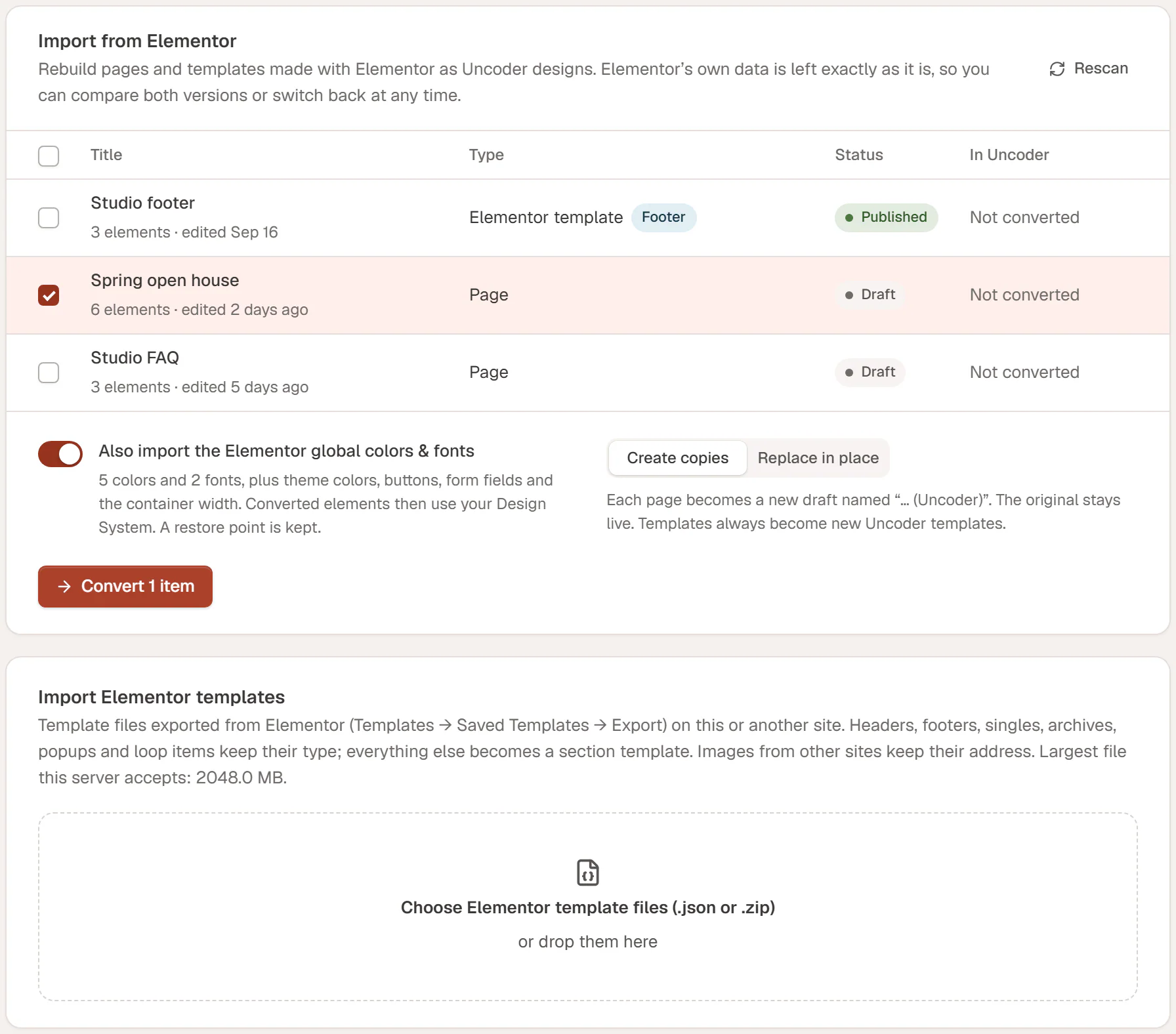
Uncoder scans the site for pages, posts and Elementor templates that have an Elementor design. For each one you see:
- Title, the number of Elementor elements and when it was last edited. Click the title to view the page.
- Type: the content type, or Elementor template with its template type (such as Footer, Popup or Loop item). Templates of a UiCore theme show as UiCore template, UiCore mega menu, UiCore page title or UiCore block.
- Status: published, draft and so on.
- In Uncoder: Not converted, a link to each Uncoder copy or template made from it, or Replaced in place.
Click Rescan after you add or change Elementor designs.
If a type shows Enable Uncoder for this post type first, turn that type on under Uncoder → Settings → General → Post types, then rescan.
Convert pages and templates
Select what to convert
Tick the items in the list, or tick the box in the header row to select everything.
Decide about colors and fonts
Leave Also import the Elementor global colors & fonts on to bring Elementor's Site Settings into your Design System (see below), or turn it off.
Choose Create copies or Replace in place
See the difference below. Templates always become new Uncoder templates, whatever you choose.
Convert
Click Convert (the button says how many items). Uncoder converts one item at a time and shows the progress. When it is done, each item has a result line.
Create copies or Replace in place
| Mode | What happens | When to use it |
|---|---|---|
| Create copies | Each page becomes a new draft named "… (Uncoder)". The original Elementor page stays live and unchanged. | To compare, polish the copy, then swap it in when you are happy. The default. |
| Replace in place | The page itself switches to its Uncoder design, at the same address. Its Elementor data is kept. | When you are ready to move the live page to Uncoder in one step. |
If you replace a page that already has an Uncoder design, that design is overwritten. The importer warns you before, and WordPress revisions keep the previous version.
To go back from Replace in place, open the page in the WordPress editor and choose Switch back to the WordPress editor. The page stops using its Uncoder design, and with Elementor active it shows its Elementor design again.
Page layout
Pages keep their layout. A page on Elementor's Canvas template gets Uncoder Canvas (no header/footer), and a page on Elementor Full Width gets Uncoder Full Width.
On the Hello Elementor theme, Elementor pages show edge to edge on the default template, so they get Uncoder Full Width too. The same goes for a UiCore theme with its page title switched off (Theme Options → Page Title), when UiCore is active while you convert.
Templates
Elementor templates become Uncoder templates of the matching type:
| Elementor template | Uncoder template |
|---|---|
| Header, Footer | Header, Footer |
| Single post, Single page, Single | Single post, Single page, Single |
| Product, Product archive | Single product, Product archive (see WooCommerce) |
| Archive | Archive |
| Search results, 404 page | Search results, 404 page |
| Popup | Popup |
| Loop item | Loop item |
| Section, Container, Page, Global widget | Saved section |
| UiCore header, footer, popup | Header, Footer, Popup |
| UiCore single, archive | Single, Archive |
| UiCore mega menu | Mega menu (see UiCore Framework themes) |
| UiCore page title, block | Saved section |
Loop items, popups, UiCore mega menus and UiCore blocks are converted first, then other templates, then pages. Pages that use a converted loop item or popup then point to the new Uncoder version.
Elementor Pro's display conditions come over with the theme templates: a converted header, footer, single, archive or product template shows where it showed before. Check them in the Theme Builder. Popup triggers and layout are not converted: set them in the popup settings.
The conditions work the way Elementor applies them:
- All Archives leaves the shop and the product archives to WooCommerce, and to your Product archive template, when WooCommerce is active.
- Posts Archive means the blog page only. Category, tag and other archives stay with the templates set for them.
- A Single page or Single template that covers all pages leaves out the pages built with Elementor, because Elementor Pro shows those pages without a single template.
- A template that is not published in Elementor (a switched-off template) stays a draft in Uncoder, so it does not start showing on the site. Its result line says so. Publish it in the Theme Builder when you want to use it.
- A template without display conditions shows nowhere until you set its conditions in the Theme Builder. Its result line says so.
Template shortcodes
Elementor Pro's [elementor-template id="…"] shortcode, in page content, widgets or theme files, keeps working once Elementor Pro is switched off: it then shows the saved section converted from that template. UiCore's [uicore-block id="…"] shortcode does the same once UiCore is switched off.
- Convert the template first. Until then, the shortcode shows nothing.
- Only published saved sections show this way: templates of the type Section, Container, Page or Global widget, and UiCore blocks.
- While Elementor Pro or UiCore is active, its own shortcode keeps showing its own template.
Import Elementor's global colors and fonts
Also import the Elementor global colors & fonts takes Elementor's Site Settings and adds them to your Design System: the global colors and fonts, plus theme colors, button and form field styles, the container width and the site's custom CSS. The line under the switch says how many colors and fonts were found.
- It is on by default the first time, when Elementor Site Settings exist. After one import it says Already imported once.
- Converted elements then use your Design System colors and text styles, instead of fixed values, so changing a color later updates every converted page.
- Uncoder saves a restore point first. The result says Design System updated from Elementor and you can go back in the Design System history.
- Only administrators can import colors and fonts.
To import only the colors and fonts, without converting anything, select nothing and click Import colors & fonts.
Custom fonts
The import also brings along the fonts uploaded with Elementor Pro's Custom Fonts (published fonts, with WOFF2, WOFF or TTF files), so text styles that use them keep their typeface once Elementor is off. They become Uncoder custom fonts. A font family you already have in Uncoder is left as it is. The custom fonts of a UiCore theme come along the same way (see UiCore Framework themes).
Site CSS
The custom CSS of Elementor's Site Settings is added to your Design System's site CSS, rewritten for the converted elements:
- CSS for one element (
.elementor-element-1a2b3c) targets the converted element. - The inner classes of buttons, icon boxes, icon lists, post info, nested tabs and the Search widget become Uncoder's, such as
.elementor-button→.uncoder-btn. - CSS for Elementor's header and footer (
.elementor-location-header,.elementor-location-footer) targets your Uncoder header and footer. - Elementor's global color and font variables (
--e-global-color-…,--e-global-typography-…) stay defined. They point to your Design System colors and text styles, so CSS that uses them keeps working.
Other Elementor classes stay as they are written, because they have no single Uncoder equivalent. Check the site after the import.
Apply to the whole site
Elementor's Site Settings style every page of the site, so the import turns on Apply to the whole site in the Design System.
When you first activate Uncoder on a site with published pages built with another page builder (Elementor, Divi, Beaver Builder, Bricks, Oxygen, WPBakery, Breakdance or Brizy), Apply to the whole site starts off, so the site keeps its look. It stays off until you import Elementor's colors and fonts or turn it on yourself. See Apply the styles to the whole site.
Read the report
Each converted item gets a result line with a badge (Draft copy, Replaced in place or the template type), the number of elements, what needs attention, and Edit and View links. A green check means everything was converted. A warning sign means something needs a look: click Details.
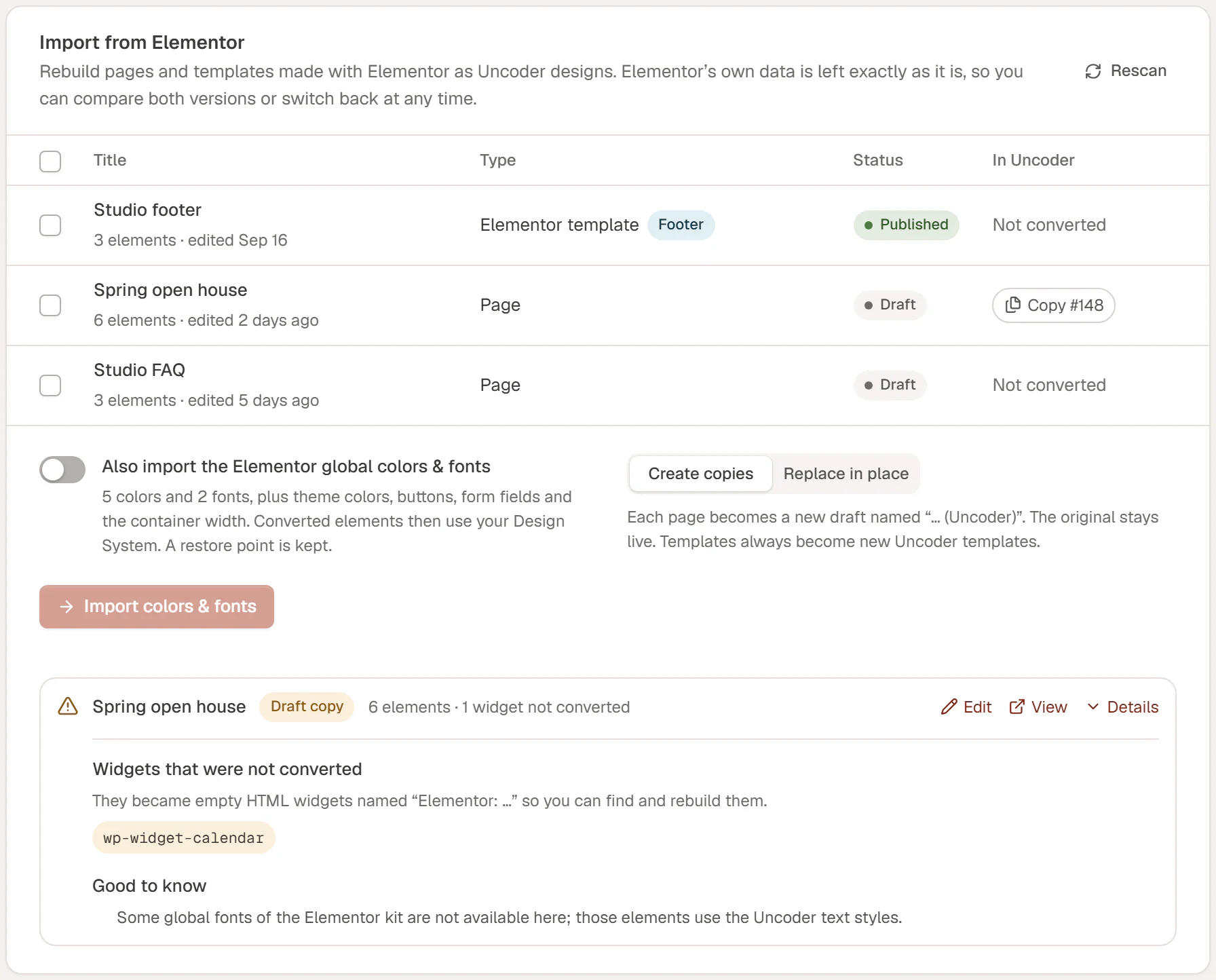
The details can list:
| Section | Meaning |
|---|---|
| Widgets that were not converted | Widgets Uncoder has no equivalent for, such as widgets from other add-on plugins. Each became an empty HTML widget named "Elementor: …" in the right place, so you can find it in the Layers panel and rebuild it with Uncoder widgets. |
| Settings to check | Widget settings that could not be carried over exactly, per widget. Check these elements in the editor. |
| Good to know | Notes about the conversion, for example fonts that are not available in your Design System. |
| Images still loaded from another site | Images whose address points to another site. Upload them to your media library and pick them again, or they break when that site goes away. |
| Dropped while saving | Values that were invalid and left out when the design was saved. |
If an item could not be converted at all, its line says why, for example that you may not create that kind of template.
Import Elementor template files
You can also convert templates you exported from Elementor on this or another site (in Elementor: Templates → Saved Templates → Export).
Choose the files
In Import Elementor templates, click Choose Elementor template files (.json or .zip) or drop the files on it. You can choose several files, or one
.zipwith many.Wait for the conversion
Each file is converted right away and gets a result line with the same report as above.
Headers, footers, singles, archives, product pages, product archives, popups and loop items keep their type; everything else becomes a saved section. Images from other sites keep their address, so check the report for images to upload. Only administrators can upload template files.
UiCore Framework themes
Themes built on UiCore Framework (such as Framey, Affirm or Brisk) keep their headers, footers and other parts in UiCore's own theme builder, made with Elementor. The importer lists those templates with the rest and converts them like Elementor templates. It reads them from the database, so UiCore does not need to be active.
| UiCore template | Uncoder template |
|---|---|
| Header, Footer, Popup | Header, Footer, Popup |
| Single, Archive | Single, Archive |
| Mega menu | Mega menu |
| Page title, Block, other kinds | Saved section |
- Display rules: UiCore's display rules and exclusions become display conditions: the entire site, all pages or all posts, all archives, the front page, the blog page, search results, the 404 page, author and date archives, the shop, custom post types, and specific pages or terms. Mega menus and saved sections have no display conditions.
- Mega menus: a converted mega menu is attached to the menu items that opened it, with the same width: UiCore's custom width becomes Fit content, full width stays Full width, and the others become Site container. The result line says how many menu items it was attached to. See Mega menus.
- Page titles: a UiCore page title becomes a saved section. Place it at the top of the pages or templates where it showed.
- Blocks: a UiCore block becomes a saved section, and its
[uicore-block id="…"]shortcodes show it once UiCore is off (see Template shortcodes). - Templates that are not published in UiCore stay drafts, like Elementor's.
Converting a UiCore mega menu changes the menu items that opened it: they become plain links (they keep their address, or get #) that open the Uncoder mega menu. This is the one change the importer makes outside Uncoder. If you switch UiCore back on, those items no longer open UiCore's mega menu.
Theme Options
With Also import the Elementor global colors & fonts on, the UiCore theme's Theme Options come along into your Design System:
- the theme's colors become your Primary, Secondary, Accent, Headings, Text and Surface colors;
- its heading and body fonts become the Design System fonts;
- its h1 to h6 and paragraph styles (size per device, line height, letter spacing and weight) become the Heading 1–Heading 6 and Body text styles. Tags the Theme Options leave on their defaults get UiCore's default styles, as on the site;
- its custom fonts (Theme Options → Typography → Custom Fonts) become Uncoder custom fonts;
- its Custom CSS is added to your site CSS and rewritten like Elementor's (see Site CSS), with a rule that keeps UiCore's boxed width (95% of the screen at most).
The Theme Options need the Elementor Site Settings that the UiCore theme created: without them there is nothing to import.
WPForms forms
A WPForms form becomes an Uncoder Form widget when it is in Elementor's WPForms widget, or alone in a Shortcode widget ([wpforms id="…"]). Uncoder then checks, saves and emails the submissions itself, so the page no longer needs WPForms. The form is read from the database: WPForms does not need to be active.
| WPForms field | Uncoder field |
|---|---|
| Single Line Text | Text |
| Name | Text: one field with the Simple format, otherwise a first name and a last name field side by side |
| Paragraph Text | Textarea |
| Numbers, Number Slider | Number |
| Phone | Phone |
| Website / URL | URL |
| Dropdown | Select |
| Multiple Choice | Radio buttons |
| Checkboxes | Checkboxes |
| GDPR Agreement | Acceptance (consent) |
| Date / Time | Date |
| Hidden Field | Hidden |
| File Upload | File upload |
| Page Break | — Step break — |
| Section Divider | — Section title — |
What comes over:
- each field's label, placeholder, Required and description (as Help text), and the choices of dropdowns, multiple choice and checkboxes (as Options). The Field ID of each field is
field_and its WPForms number, such asfield_2; - the form name and the submit button text;
- the first confirmation: a message becomes the Success message, and a Go to URL (Redirect) confirmation becomes Redirect after success;
- the first email notification: its Send To addresses, subject and reply-to field. WPForms'
{admin_email}becomes the site admin email, Uncoder's default. In the subject, the smart tags of fields, the form name and the site name become Uncoder placeholders, and other smart tags are removed. When notifications are off in WPForms, Email notification is off too; - Save submissions is on, so new submissions appear in Submissions.
Other field types, such as Address, Rating or payment fields, are left out and listed under Settings to check. HTML and Content fields are left out. Entries WPForms already saved stay in WPForms. If the form cannot be found, the widget stays a WPForms shortcode, which needs WPForms.
After converting, check the form in the editor:
- A Show Page confirmation is not converted: set Redirect after success yourself.
- Only the first notification comes over. Add the others in Actions after submit.
- A form with a file upload field needs Allow file uploads in Spam protection.
What converts
Uncoder converts containers and the old section and column layout, most Elementor and Elementor Pro widgets to their Uncoder equivalent, and the widgets of some add-ons (see Add-on widgets).
Show the list of supported Elementor widgets
Heading, Text Editor, Image, Button, Icon, Icon Box, Image Box, Icon List, Video, Spacer, Divider, Counter, Progress Bar, Testimonial, Tabs and Nested Tabs, Accordion, Toggle and Nested Accordion, Social Icons, Google Maps, Star Rating and Rating, Basic Gallery and Gallery, Image Carousel, Media Carousel, Alert, HTML, Shortcode, Menu Anchor, Form, Posts, Archive Posts, Portfolio, Loop Grid, Loop Carousel, Nav Menu, Call to Action, Price List, Price Table, Flip Box, Countdown, Animated Headline, Testimonial Carousel, Reviews, Blockquote, Share Buttons, Lottie, Table of Contents, Nested Carousel, Code Highlight, Hotspot, Slides, Site Logo, Site Title, Page Title, Post Title, Post Excerpt, Post Content, Featured Image, Archive Title, Post Info, Post Navigation, Author Box, Post Comments, Search Form, Search, Breadcrumbs and Login, plus Elementor's newer Heading, Paragraph, Button, Image, Divider and YouTube elements.
Elementor Pro's WooCommerce widgets convert to Uncoder's WooCommerce widgets: Product Title, Product Images, Product Price, Add to Cart, Custom Add to Cart, Product Rating, Product Stock, Product Meta, Short Description, Product Content, Product Data Tabs, Additional Information, Products, Archive Products, Product Related, Upsells, Product Categories, Menu Cart, Cart, Checkout, My Account, WooCommerce Breadcrumbs, WooCommerce Notices and Archive Description.
Elementor's Search widget becomes a Search Form with the same field, icon and button, and with Live results when the widget showed results while typing.
Add-on widgets
These widgets from Elementor add-ons convert too:
| Add-on | Widget | Becomes |
|---|---|---|
| UiCore Elements | Highlighted Text | A Heading with the highlighted words. An Animated Headline when the only highlighted part has a drawn stroke, or a Text widget when the line has images. Icons in the line are left out. |
| UiCore Elements | Accordion | Accordion |
| UiCore Elements | The Title | Post Title |
| Element Pack | Accordion | Accordion |
| Element Pack | Countdown | Countdown. A countdown that loops every few hours becomes an evergreen countdown. |
| Element Pack | Search | Search Form |
| Element Pack | Custom Carousel | Image Carousel, or a Marquee of images when UiCore Animate's marquee option is on |
| Element Pack | WooCommerce Elements | Cart, Checkout or My Account. Other WooCommerce elements keep their WooCommerce shortcode. |
| Uncoder Elements | Nav Menu | Nav Menu |
| Uncoder Elements | Accordion | Accordion |
| WPForms | WPForms | Form (see WPForms forms) |
Uncoder Elements also adds options to Elementor's own elements and Site Settings. These come over too:
- Span Text Color on a Heading: the words in a
<span>become highlighted words with that color. - The button icon style (the icon in a box of its own) and the icon list spacing.
- Fluid backgrounds on sections and containers become animated backgrounds with the same shader, colors and settings.
- The sticky header of a header template becomes its header behaviour: Show when scrolling up (the smart sticky header) or Always visible, with its background when scrolled.
- With the global colors and fonts: the back-to-top button (the Design System's Back-to-top button, on the same side), the Blog Typography of single posts (as site CSS), and the button style on WooCommerce's buttons.
- Its icon fonts (see below).
The sticky header, the back-to-top button, the WooCommerce buttons and the Remix Icon and Uncoder Icons fonts come over only when Uncoder Elements is active while you convert.
Icons
Font Awesome icons keep their icon, and Elementor's own icons become Lucide icons. Icons from the add-ons' fonts:
| Icon font | Becomes |
|---|---|
| Themify Icons (UiCore) | The same pictures from Lucide, or Uncoder's Themify icons when Lucide has no match. |
| Feather, Heroicons (Uncoder Elements) | Uncoder's Feather and Heroicons icons. |
| Remix Icon, Uncoder Icons (Uncoder Elements) | Custom icon sets named "Remix Icon" and "Uncoder Icons", with only the icons the site uses. |
An icon that cannot be converted is listed under Settings to check.
Always check converted pages in the editor and on a phone before you publish them: the result is a close match, not a pixel-perfect copy.