Saved sections
Save a section once, reuse it anywhere, and embed it with a widget or shortcode.
On this page
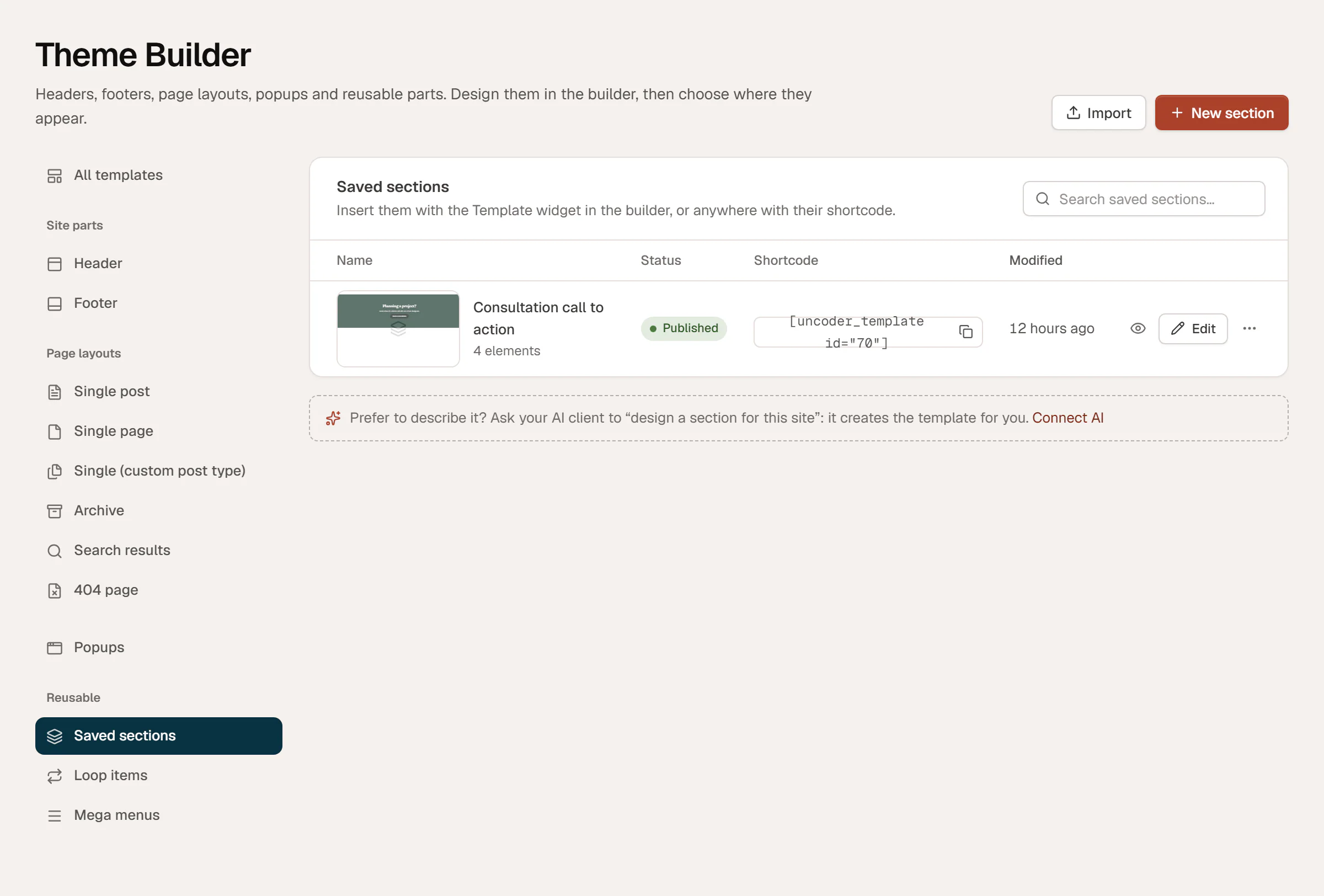
A saved section is a piece of design you want on several pages: a call to action, a testimonials band, a newsletter signup, opening hours. Save it once, then either insert a copy of it on any page, or embed it so that one edit updates every page that shows it. Saved sections are Section templates, listed in Uncoder → Library → Saved sections.

Save a section
Right-click the element
In the editor, right-click the container (or any element) you want to reuse and choose Save as template.
Name it
Type a Template name, for example "Project enquiry", and click Save.
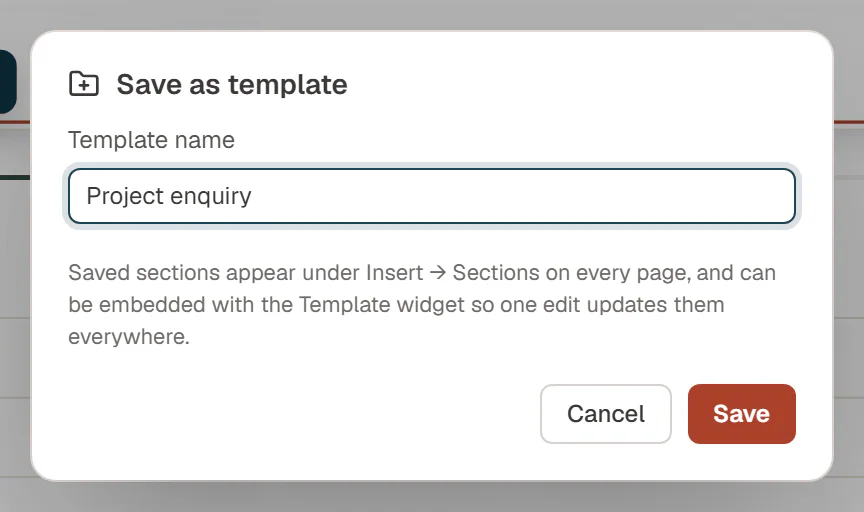
The section is saved and published right away, with everything inside it. You can also create one from scratch: go to Uncoder → Library → Saved sections and click New section.
Start from a premium section
Pro and Agency. Go to Uncoder → Library → Premium sections and browse the premium sections by category. Click Save to my sections on one you like: Uncoder copies it into your saved sections, with its text styles, fonts and images, so you can change it and reuse it. See Premium sections.
Reuse a section
There are three ways to put a saved section on a page:
| Way | How | Later changes to the section |
|---|---|---|
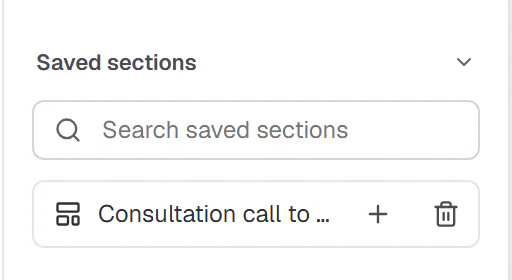
| Insert a copy | In the editor, open Insert → Sections, open the Saved sections group and click + next to it. | Not applied. The copy is independent: edit it freely on this page. |
| Embed it with the Template widget | Drag a Template widget onto the page and pick the section in Section template. | Applied everywhere. Edit the section once and every page that embeds it updates. |
| Embed it with a shortcode | Copy the section's shortcode from Library → Saved sections, such as [uncoder_template id="70"], and paste it where WordPress accepts shortcodes: a Shortcode block, a classic editor page, a widget area. | Applied everywhere. |
Inserted copies go after the selected section, or at the end of the page. When you hover an embedded section in the editor, a small dark bar inside its top-right corner shows its name and an Edit template link; click the link to change the section itself.
Want each page to change a few texts or images of an embedded section, such as the title of a call to action? Turn the section into a component with properties. The Template widget then shows Content of this copy for each placement. See Components.
Edit or delete a saved section
- Edit: in Library → Saved sections, click Edit on the section, or use Edit template on an embedded copy. Changes show on every page that embeds it once you click Update.
- Delete: click the trash icon next to it in Insert → Sections, or choose Move to trash in Library → Saved sections. Pages that embed the section stop showing it; inserted copies stay.
Editors and authors can use and manage saved sections too, in Library → Saved sections. The Theme Builder itself needs theme permissions, which administrators have.