Settings overview
Find your way around the Uncoder settings and save your changes.
On this page
Uncoder → Settings holds the site-wide options: which content types use the builder, who may use it, how fonts and styles load, the cookie banner, form services, business details, custom code, the support tools and your licence. Only administrators see this screen.
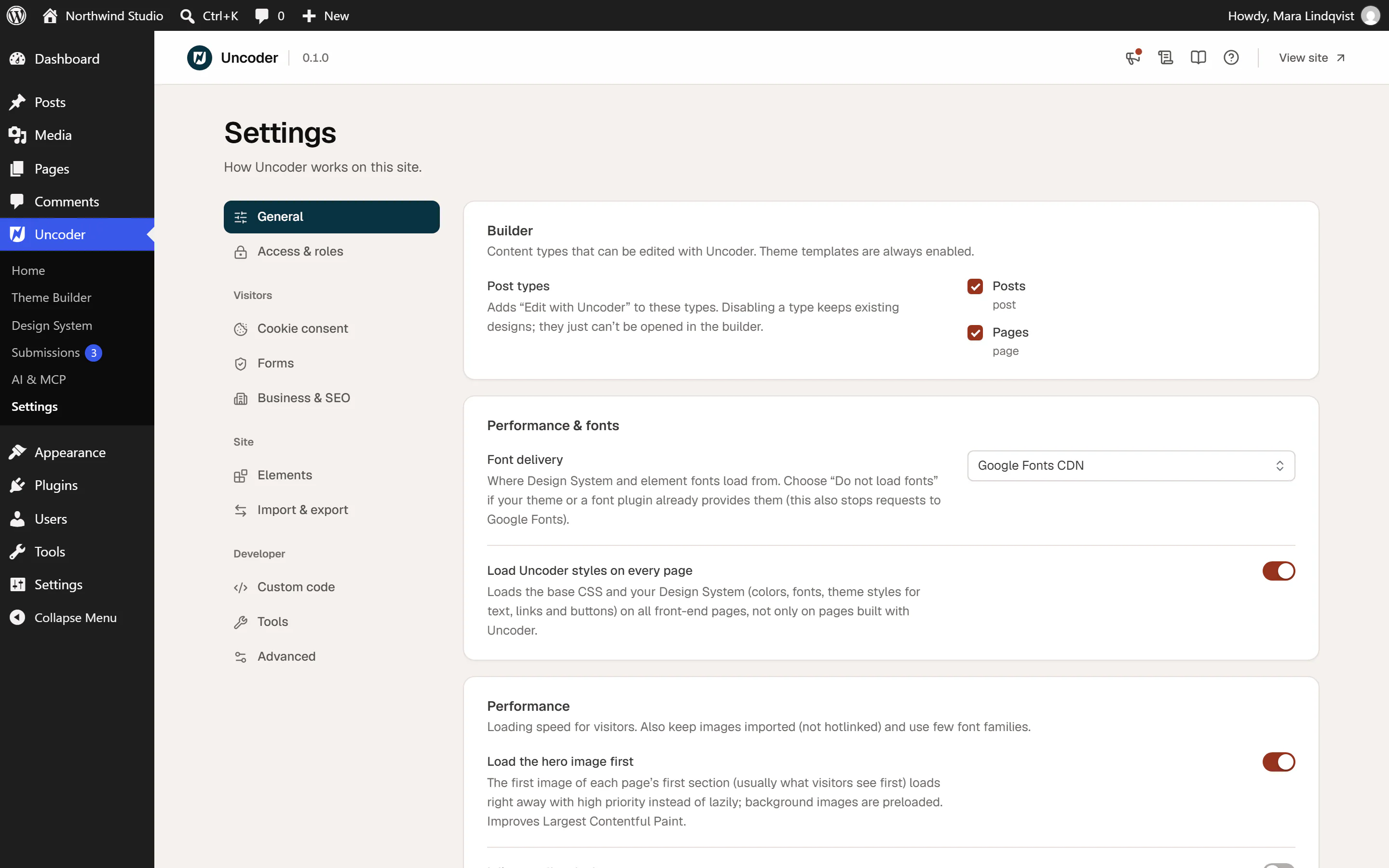
Sections
The list on the left sorts the sections into four groups. Click one to open it. Each section has its own address, so you can bookmark it or share a link, for example …/wp-admin/admin.php?page=uncoder-settings#privacy for the cookie banner.
Builder
| Section | What you set there |
|---|---|
| General | Which content types get Edit with Uncoder, automatic updates for the plugin, the theme and your Pro features (the Updates card), and how much each WordPress role may do in the builder (the Roles card). |
| Elements | Turn off widgets you do not use, and see where each widget is used. |
| Performance & fonts | How fonts load, whether Uncoder styles load on every page, and loading speed options. |
Visitors
| Section | What you set there |
|---|---|
| Site access | Maintenance and coming soon mode, to close the site to visitors while you build or fix it. |
| Cookie consent | The cookie banner, and holding back analytics and marketing code until visitors agree. |
| Forms | CAPTCHA for forms, how long submissions are kept, and newsletter service keys. |
| Business & SEO | Your business details as structured data for search engines. |
Developer
| Section | What you set there |
|---|---|
| Custom code | Tracking tags, pixels, CSS and JavaScript snippets for chosen pages. |
| Tools | Regenerate CSS, find and replace across the site, export or import designs, safe mode, version rollback and system info. |
| Advanced | What happens to your data when you delete the plugin. |
Account
| Section | What you set there |
|---|---|
| Licence | Activate a Pro or Agency key, see your plan and sites, and free this site for another one. |
| White-label | Show the builder under your agency's name, logo and icon (Agency). |
| Client handoff | Hand a finished site to your client, who then changes content only (Agency). |
With white-label Only me turned on, only the administrator who set it sees Licence, White-label and Client handoff. See White-label.
To export or import a whole site as a site kit, or to import designs from Elementor, go to Uncoder → Library → Import & export. See Site kits.
Save your changes
When you change a setting, a bar appears at the bottom of the screen with You have unsaved changes:
- Click Save changes to save everything you changed, in every section.
- Click Discard to go back to the saved values.
A dot next to a section name in the list shows which sections have unsaved changes. If you try to leave the page with unsaved changes, your browser asks you first.
Some parts work on their own and do not use the save bar: Licence acts when you click Activate or Deactivate on this site, White-label and Client handoff have their own Save button, Custom code saves each snippet when you click Add snippet or Save snippet, and the buttons under Tools act immediately.
When maintenance or coming soon mode is on, Site access shows a warning mark in the list, and Settings has an amber dot in the Uncoder menu, so you do not forget that visitors cannot see your site.
Other places with settings
- Uncoder → AI & MCP has the settings for AI connections. See Server settings.
- The Design System holds your colors, fonts, buttons and site-wide behaviour such as smooth scrolling and the lightbox. See Design System.
- Each page and template has its own settings in the editor. See Page settings.