Post Content
The content of the current post or page, for single post and page templates.
On this page
The Post Content widget shows the main content of the post or page being viewed: its text, headings, images, embeds and shortcodes. It is the heart of every single post and page template: you design everything around it once, and each post fills it with its own content.
Where the content comes from
The widget shows what you write when you edit the post in WordPress, whether you use the block editor or build the post itself with Uncoder. Blocks, shortcodes and embeds are rendered as usual. Password-protected posts show the password form instead, and posts split with page breaks get "Pages: 1 2" links at the end.
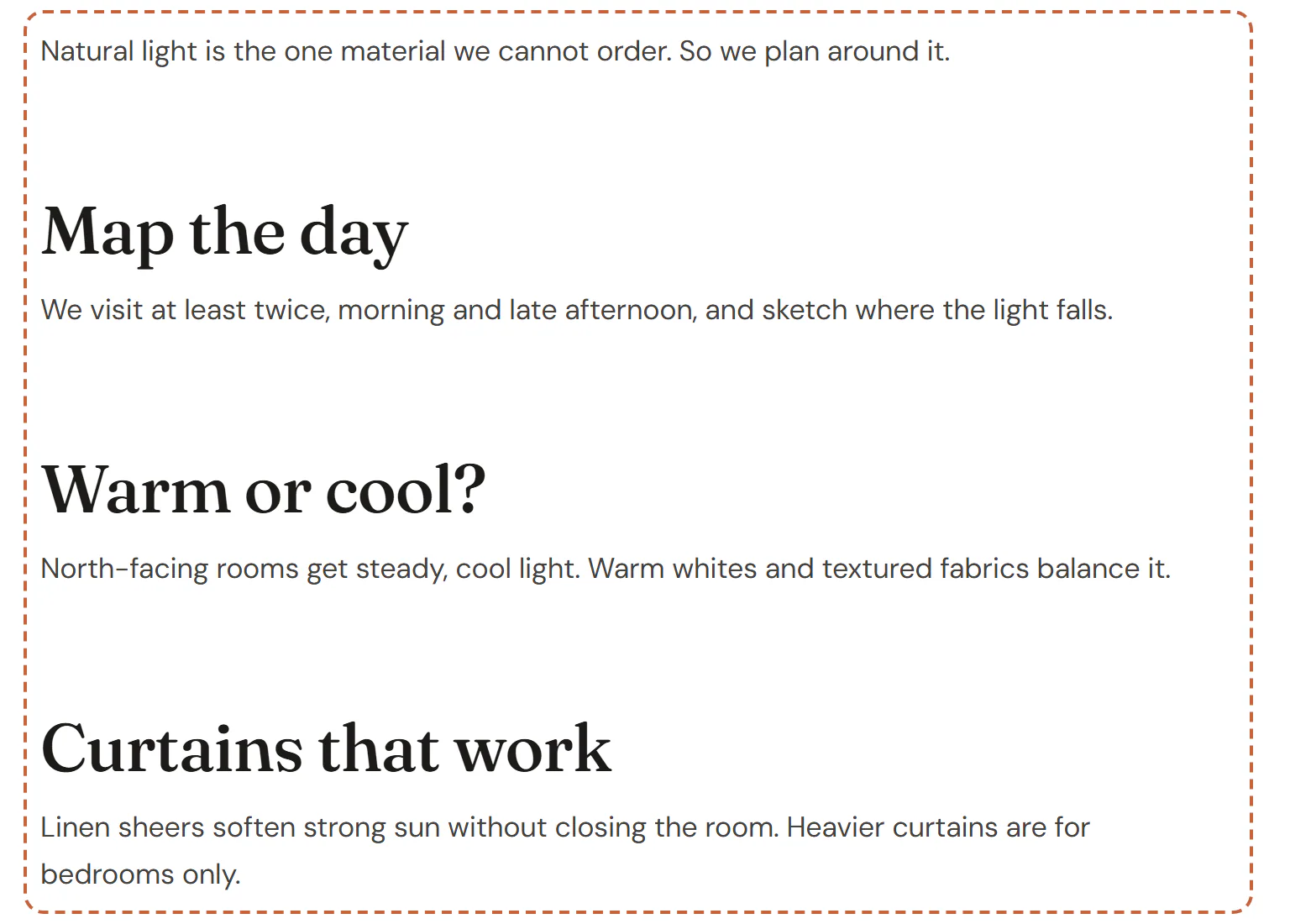
In the editor, the widget shows sample text with headings, a list and a quote, so you can style every kind of content even while you design the template.
Add Post Content
Open your single post or page template in the Theme Builder. Then click Insert in the rail on the left, find Post Content in the Site & theme group (or type "content" in the search box) and drag it into the template. See Add elements.
Place it once per template. It cannot be used inside the post itself: in a normal page, the widget shows a notice instead.
Style long-form text
Posts written in the block editor do not have Uncoder classes on every paragraph and heading. Style them all at once from this widget's Design tab: Text for paragraphs and links, Headings for every heading level inside the content, and Images & quotes for rounded images and the quote accent color. Your Design System text styles apply by default. See Typography.
The widget also has the entry-content class that themes give post content, so CSS your theme, plugins or site wrote for post content applies here too. Uncoder still sets the spacing between paragraphs, headings and lists, and the look of quotes. To leave those to your theme and site CSS as well, for example on a site moved from another builder, turn on Theme styling in the Content tab. Post Content widgets imported from Elementor have it on. See Import from Elementor.
Content tab settings
| Setting | What it does |
|---|---|
| Alignment | Left, Center, Right or Justify for the text. Can differ per device. |
| Theme styling | Leaves the spacing of paragraphs, headings and lists, and the look of quotes, to your theme and site CSS. The Design tab settings you change still apply, and Paragraph spacing and Space above headings are hidden. Off by default. |
Design tab settings
| Section | Settings |
|---|---|
| Text | Typography, Text color, Link color, Link hover color, Paragraph spacing (hidden with Theme styling). |
| Headings | Typography, Color, Space above headings (hidden with Theme styling). |
| Images & quotes | Image radius, Quote accent (the color of the line beside quotes). |
The Design tab also has the sections every element shares: Spacing & position, Background & border and Mask. See Spacing, size & position.
Behaviour tab
The Behaviour tab has the settings every element shares: anchor and classes, entrance animations, motion effects, visibility per device, display conditions and interactions. See Visibility.
Tips
- Keep the content column narrow, around 680–760px, for comfortable reading. Set the width on the container around the widget.
- A Table of Contents with the container selector
.uncoder-post-contentlists only the headings of the post.